
Today, we’ll look at pivot table formatting, old style, but first, here’s an update. In the last blog post, you saw how to turn off buttons and drop downs in an Excel 2007 pivot table, and there are a couple of updates on that topic.
First, in the comments for that post, Jon Peltier suggested a simple Copy and Paste Values instead, but that doesn’t paste the pivot table style formatting.
Then, John Walkenbach pointed us to one of his articles, which describes how to paste the pivot table style formatting from the Office Clipboard. Thanks! So, if you want to send someone a pivot table that’s not really a pivot table, you can use that technique.
Pivot It Old School
While we’re on the topic of pivot table formatting, someone asked me how to make an Excel 2007 pivot table look like an old-fashioned Excel 2003 pivot table. He didn’t explain why he wanted the old formatting, but maybe it’s for consistency in a published document.
It’s easier to make a couple of new pivot tables look like the old ones, than to reformat all the old ones. Or maybe he just likes the old style better.
Anyway, in case you’ve forgotten, here’s what a plain old pivot table looked like, in Excel 2003.
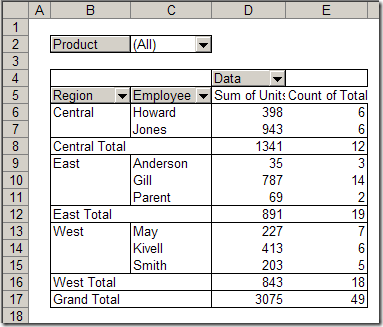
Default Pivot Table in Excel 2007
Here’s the same data in a default Excel 2007 pivot table.
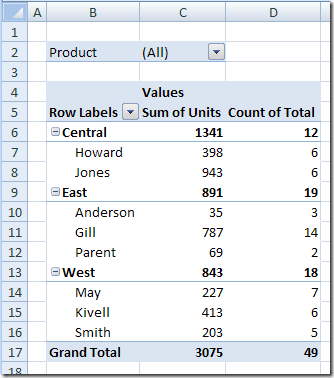
Change the Pivot Table Report Layout
The first step is to change the Report Layout, so all the Row Labels aren’t in the same column.
- On the Ribbon, under PivotTable Tools, click the Design tab.
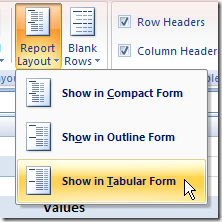
- In the Layout group, click Report Layout, then click Show in Tabular Form.
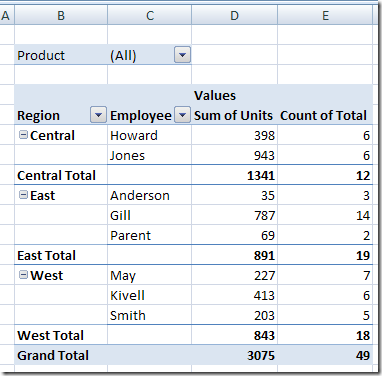
Fields in Separate Columns
That moves each Row field into a separate column, just like it was in older versions of Excel.
Change the PivotTable Style
Next, instead of using the default PivotTable Style, click None, in the Light group.
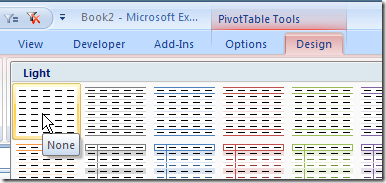
That clears out all the fancy formatting, and leaves you with a bare bones pivot table.
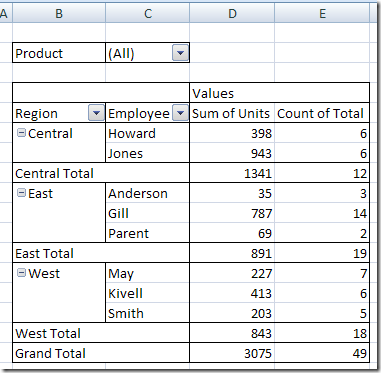
Finish the Formatting
If you want it to look even more like the old pivot tables, you can add some grey fill to the cells that contain field headings. I also turned off the grid lines, because parts of the pivot table are opaque, and other parts aren’t (Excel 2007 and Excel 2003).
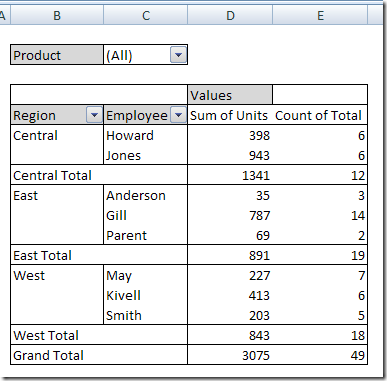
And there you have it! An old style pivot table in Excel 2007.
_________
Maybe it’s just me showing my age, but whenever I see a table or pivot table formatted a la 2007, I can’t help but think some kid got loose with watercolors again. The most minimalist built-in styles are still overdone.
Another advantage to the old skool pivot tables is the ability to drag field buttons around right on the worksheet. All the new pivot features hardly make up for the loss of this capability.
I think it also works to right click on the pivot, go to pivot table options, select the display tab and check the option called classic pivot table layout.
or you can right click on the 2007 style table, click pivot table options, display, classic pivot table.
done.
HI Experts,
Here in the above examples datafields are appearing in column wise. But when i write in vba the datafields are appearing row wise.
I am using the vba coding as.
With pt.PivotFields(“Job Size”)
.Name = “Pages Produced”
.Orientation = xlDataField
.Function = xlSum
.Position = 1
End With
Please correct me.
Most of my college friends and I adore the 07 improvements and 10 even more so. Rote statistical analysis via pivot has never been easier. Give me watercolors anyday.
PS. Silly, you can still drag field buttons, you just have to do it within the Pivot Table Field List.
Cheers
Thnx for the valuable information