
To do some research on sorting, I hauled one of the big, dusty Excel books off my shelf, to see if there were any scintillating sorting secrets to uncover. Under Sorting, I saw “rank calculations” so I turned to that page, to see what it said about calculating rank in Excel.
The referenced page explained the RANK function, and included this warning, “Be sure the data set is sorted in either ascending or descending order.” Hmmm…I’d never heard that before, and a quick check in Excel’s Help proved that statement was wrong – the data set does NOT have to be sorted. Whew! I’ve been doing it right all along.
Do You Use the RANK Function?
Maybe you use the RANK function every day, but I rarely need it. If I want to see which products have the highest prices, or which students have the best scores, I’d probably just sort the list.
But now that I was in Excel Help anyway, I decided to learn a bit more about the RANK function. Maybe it has exciting features and hidden tricks to discover. (No, I hadn’t been drinking, I’m just optimistic.)
RANK Function Basics
If you give the RANK function a number, and a list of numbers, it will tell you the rank of that number in the list, either in ascending or descending order.
For example, here’s a list of 10 student test scores, in cells B2:B11. To find the rank of the score in cell B2, enter this formula in cell C2:
=RANK(B2,$B$2:$B$11)
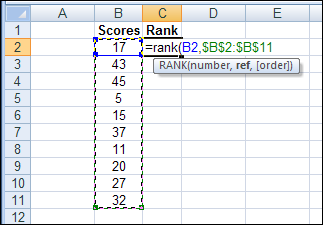
There are 3 arguments for the RANK function:
- number: in this example, the number to rank is in cell B2
- ref: We want to compare the number to the list of numbers in cells $B$2:$B$11. I used an absolute reference, so the referenced range will stay the same when we copy the formula down to the cells below
- order: (optional) Use zero, or leave this argument empty, to find the rank in the list in descending order. For ascending order, type a 1, or any other number except zero. I left this blank, to find the rand in descending order. If you were comparing golf scores, you could type a 1, to rank in ascending order.
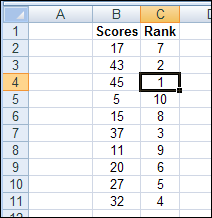
I copied the formula down to cell C11, and the scores were ranked in descending order, as promised.
RANK Function With Ties
What happens to the ranking if some of the scores are tied? I was going to use the Olympics as an example, but it looks like every sport has different rules, so that won’t work!
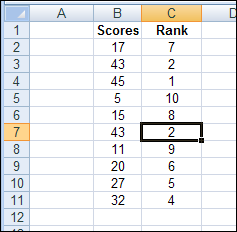
In our example, if I change cell B7 to 43, it’s tied with cell B3. Both cells are now ranked as 2, and it doesn’t affect any of the other rankings. The score of 32 is still 4th, not 3rd, because there are 3 scores ahead of it.
So, if you were handing out awards to the top students,
- the score of 45 would get the first place blue ribbon
- the two students with 43 would each get a second place red ribbon
- no one would get a third place ribbon (green? white?)
- everyone else gets one of those orange “Participant” ribbons 😉
Breaking Ties With the RANK Function
In some cases, ties aren’t allowed, so you have to find a way to break the tie. We could keep track of the number of minutes that each student worked on the test, and use that time to break any ties in the ranking.
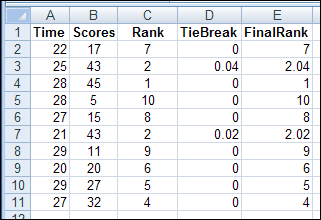
I added the Test Times in column A, and a TieBreak formula in column D.
=IF(COUNTIF($B$2:$B$11,B2)>1,RANK(A2,$A$2:$A$11,1)/100,0)
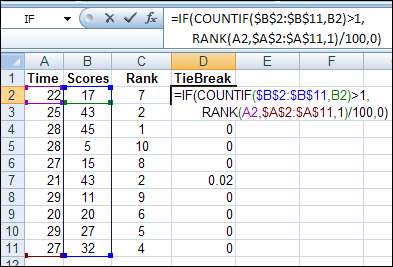
The TieBreak formula checks to see if there’s more than one instance of the number in the entire list ($B$2:$B$11).
- If there is more than one instance, it ranks the Times in ascending order and divides that by 100, to get a decimal amount. Note: The divisor, 100, could be changed to another number, if you were working with a longer list.
- If there is only one instance, the result is zero.
Finally, you can combine the RANK function results with the TieBreak results, to get the final ranking.
Get the Excel File
For more details on breaking ties, and to get the sample file, go to the Excel Rank with Ties page on my Contextures site. The zipped Excel file is in xlsx format, and does not contain any macros.
And for more RANK formula examples, and to get the sample Excel file, go to the RANK formula in Excel, page on my Contextures site.
__________
Hello All,
My copy and paste below is not a very good example as the rows and columns are missing. I understand how to use the rank formula in cells that are in the same column and adjacent to each other. All, I am trying to figure out is how to rank cells that are not next to each other. The <<<<<<<<<<< (arrows) below point to the cells that I am trying to add the rank to and the (D9,D16,D24,D30,D35 etc.) are the cells with the information that I am trying to pull the data from. Any help will be greatly appreciated. Thanks, Eric
Fall Term
Class Students Passing % Passing Ranking
Math 1 91 80 =C3/B3 =RANK(D3,$D$3:$D$8)
Math 2 82 70 =C4/B4 =RANK(D4,$D$3:$D$8)
Math 3 38 36 =C5/B5 =RANK(D5,$D$3:$D$8)
Math 4 67 46 =C6/B6 =RANK(D6,$D$3:$D$8)
Math 5 87 66 =C7/B7 =RANK(D7,$D$3:$D$8)
Math 6 99 79 =C8/B8 =RANK(D8,$D$3:$D$8)
Math =SUM(B3:B8) =SUM(C3:C8) =C9/B9 <<<<<<<<<<<<<<<<<< =RANK(D9,D16,D24,D30,D35)
History 1 118 104 =C10/B10 =E11
History 2 122 107 =C11/B11 =RANK(D11,$D$10:$D15)
History 3 125 108 =C12/B12 =RANK(D12,$D$10:$D15)
History 4 76 69 =C13/B13 =RANK(D13,$D$10:$D15)
History 5 175 141 =C14/B14 =RANK(D14,$D$10:$D15)
History 6 111 91 =C15/B15 =RANK(D15,$D$10:$D15)
History =SUM(B10:B15) =SUM(C10:C15) =C16/B16 <<<<<<<<<<<<<<<<<< =RANK(D9,D16,D24,D30,D35)
Science 1 135 120 =C17/B17 =RANK(D17,$D$17:$D23)
Science 2 103 83 =C18/B18 =RANK(D18,$D$17:$D23)
Science 3 1 0 =C19/B19 =RANK(D19,$D$17:$D23)
Science 4 137 118 =C20/B20 =RANK(D20,$D$17:$D23)
Science 5 84 71 =C21/B21 =RANK(D21,$D$17:$D23)
Science 6 145 116 =C22/B22 =RANK(D22,$D$17:$D23)
Science 7 103 82 =C23/B23 =RANK(D23,$D$17:$D23)
Science =SUM(B17:B23) =SUM(C17:C23) =C24/B24 <<<<<<<<<<<<<<<<<< =RANK(D9,D16,D24,D30,D35)
Social Studies 1 57 43 =C25/B25 =RANK(D25,$D25:$D29)
Social Studies 2 62 50 =C26/B26 =RANK(D26,$D25:$D29)
Social Studies 3 53 43 =C27/B27 =RANK(D27,$D25:$D29)
Social Studies 4 179 128 =C28/B28 =RANK(D28,$D25:$D29)
Social Studies 5 84 76 =C29/B29 =RANK(D29,$D25:$D29)
Social Studies =SUM(B25:B29) =SUM(C25:C29) =C30/B30 <<<<<<<<<<<<<<<<<< =RANK(D9,D16,D24,D30,D35)
P.E. 1 126 97 =C31/B31 =RANK(D31,$D$31:$D34)
P.E. 2 89 67 =C32/B32 =RANK(D32,$D$31:$D34)
P.E. 3 91 73 =C33/B33 =RANK(D33,$D$31:$D34)
P.E. 4 84 60 =C34/B34 =RANK(D34,$D$31:$D34)
P.E. =SUM(B31:B34) =SUM(C31:C34) =C35/B35 <<<<<<<<<<<<<<<<<< =RANK(D9,D16,D24,D30,D35)
Eric, calculate the subject passing percentage in a separate column, then calculate the ranks based on that column.
in my exl i put rank formula but some digit is same than rank formula is provide me twice rank,so please help..
Ties are okay for me but I need the rank to be accurate. So if I have a tie for 1st. I need the next best time or score to show as 2nd place not 3rd. Any suggestions.
I found another way to resolve ties. In a separate cell:
=value+RAND()
The RANK these results.
How do i get their position NAME:JOHN,GIDEON,EMMY. SUBJECT:BIOLOGY,PHYSICS,MATHS SCORES OF JOHN:80,90,88…. SCORES OF GIDEON:90,98,77….SCORES OF EMMY:80,80,80
How to find the which was the Next Percentage if it is 1st Rank next column should the 2nd Rank Percentage.
Day Difference Rank Next Marks
31 4 5
5 5 Last
36 3 31
44 2 36
392 1 44