
While working on a client’s sales plan last week, I had to count the orders for a couple of specific customers. This tutorial shows how to count cells with specific text in Excel.
Customer Data Sample
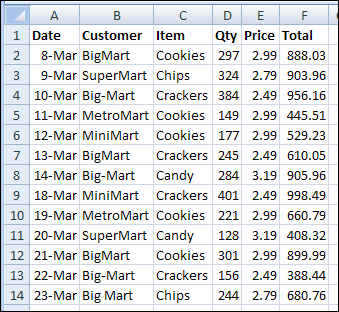
Here’s a screenshot of some sample data, with the customer names in column B.
Count cells that are an exact match
In Excel, you can use the COUNTIF function to count cells that meet a specific criterion. For example, you can use this formula to count the orders that were placed by the customer, BigMart.
=COUNTIF($B$2:$B$14,”BigMart”)
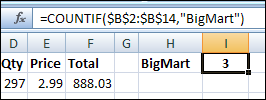
- The first argument, $B$2:$B$14, is the range that contains the cells to be counted.
- The second argument, “BigMart”, is the value that we want to count.
There are 3 cells that contain the exact text, “BigMart”, so the COUNTIF formula returns 3.
Use a cell reference in COUNTIF
Instead of typing the text in the COUNTIF formula, you can refer to a cell that contains the text you want to count. For example, if cell H1 contains the customer name, BigMart, use this formula to count their orders.
=COUNTIF($B$2:$B$14, H1)
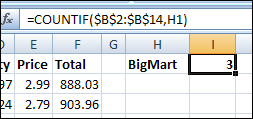
The COUNTIF formula returns 3, the same result that you got by typing the text in the formula.
Count non-exact matches
In the sales plan data that I worked on, there were a few variations on some customer spellings, and I wanted to count all of them. In the screenshot at the start of this article, you can see that BigMart is also listed as Big-Mart and Big Mart.
Use the * wildcard
To count all the variations, you can use the wildcard character, *, to represent any characters, or no characters, in the text string. For example, if cell H1 contains the customer name with a wildcard, Big*Mart, use this formula to count all the variations.
=COUNTIF($B$2:$B$14, H1)
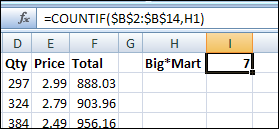
The COUNTIF formula returns 7, because it counts BigMart, Big-Mart and Big Mart.
Use the ? wildcard
If you use the ? wildcard character instead of the * wildcard character, it represents one character.
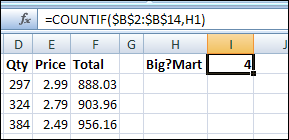
Now the COUNTIF formula returns 4, because it counts Big-Mart and Big Mart, but not BigMart. It doesn’t count BigMart, because there isn’t a character between the g and the M.
More COUNTIF Examples
For a few more examples of counting cells with specific text, visit the Excel Count Functions page on my Contextures website.
_______________
Hi,
Thanks for help. But it solves only half of my problem. I have two/three text in cell like in cells(abc, def, ghi). Now I want to count the occurrence of “abc” in the cell range. How to do that? As the above method is returning “0”.
Thank you,
I was looking all over the internet for a solution to help me find a text string in a range of data referencing data from another cell. Using the wildcards is the only solution that I could find to make it work. And it seems so simple. Thanks so much, this is awesome!
Hi – i have a report of records that are identified by ID number, some are repeat. I need to know how many times each ID number appears. Is there a formula for this? Thanks so much, this site has been helpful.
I would like to count cells on another worksheet that contain a certain letter. The cells are not in a range, I need to count every other cell. The formula =countif(SummarySheet!(data cells [separated by commas]), “C”) gives me an error. Is there a way to do this?
Thank u …..really helpful and easy to understand that other posts and blogs
I’d like to know how to use a formula that counts the number of different unique values in a single column. To make it easy for me to describe what I want to do, I’ll use the NFL list of champions. For example, I want the formula to return the number of teams that have won the NFL championship. I have already used the COUNTIF function on a team-by-team basis, but for the purpose of just counting unique vales (i.e. the number of teams that have won the championship) I have been unable to find any solution for a counting formula which uses data from a single column. Everything I have encountered involves a second column of data. The COUNTA function isn’t meant for what I want to do so I was wondering if anyone knows a way of pulling off this task.