
While working on a client’s sales plan last week, I had to count the orders for a couple of specific customers. This tutorial shows how to count cells with specific text in Excel.
Customer Data Sample
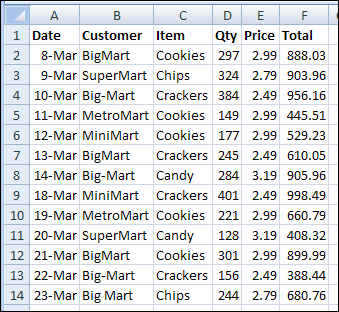
Here’s a screenshot of some sample data, with the customer names in column B.
Count cells that are an exact match
In Excel, you can use the COUNTIF function to count cells that meet a specific criterion. For example, you can use this formula to count the orders that were placed by the customer, BigMart.
=COUNTIF($B$2:$B$14,”BigMart”)
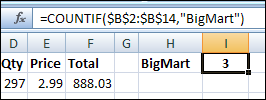
- The first argument, $B$2:$B$14, is the range that contains the cells to be counted.
- The second argument, “BigMart”, is the value that we want to count.
There are 3 cells that contain the exact text, “BigMart”, so the COUNTIF formula returns 3.
Use a cell reference in COUNTIF
Instead of typing the text in the COUNTIF formula, you can refer to a cell that contains the text you want to count. For example, if cell H1 contains the customer name, BigMart, use this formula to count their orders.
=COUNTIF($B$2:$B$14, H1)
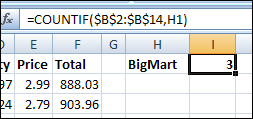
The COUNTIF formula returns 3, the same result that you got by typing the text in the formula.
Count non-exact matches
In the sales plan data that I worked on, there were a few variations on some customer spellings, and I wanted to count all of them. In the screenshot at the start of this article, you can see that BigMart is also listed as Big-Mart and Big Mart.
Use the * wildcard
To count all the variations, you can use the wildcard character, *, to represent any characters, or no characters, in the text string. For example, if cell H1 contains the customer name with a wildcard, Big*Mart, use this formula to count all the variations.
=COUNTIF($B$2:$B$14, H1)
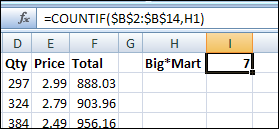
The COUNTIF formula returns 7, because it counts BigMart, Big-Mart and Big Mart.
Use the ? wildcard
If you use the ? wildcard character instead of the * wildcard character, it represents one character.
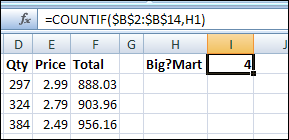
Now the COUNTIF formula returns 4, because it counts Big-Mart and Big Mart, but not BigMart. It doesn’t count BigMart, because there isn’t a character between the g and the M.
More COUNTIF Examples
For a few more examples of counting cells with specific text, visit the Excel Count Functions page on my Contextures website.
_______________
So simple yet took me forever to look up. THANKS!
i have question
i want to Count Cells that Match Text within specific cells.
for example i have a cell (a1) which i want it to count other cells (f1:f13) with condition that if in these cells (f1:f13) there is a text maching other cell(a2) count it, otherwise don’t.
how can i do this?
I would like to know how to take this to the next level. I.e. if I have a column of customer names with different invoice amounts in a corresponding column how would I use this to look for all customers with a matching name but then add the amounts in the invoice amounts column instead of displaying just how many there are?
Thanks
=SUM(($F$3:$F$1500=$A3)*($I$3:$I$1500))
where
column F is your customer names, column A is the customer you want the total for, and column I is the invoice amount.
This is an array formula, so you need to push “shift-ctrl-enter”.
WONDERFUL HELP. THANKS A MILLION!
Tahnks a lot.. this post helps me to get out of big problem.
I want to know for the number of cells whose name begins with specific characters.