
At a client’s office last week, I was selecting a pricing option from a data validation drop down list. It had some limitations, so here are 3 types of Excel drop down lists compared.
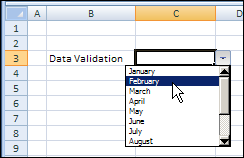
Data Validation Drop Down
At my client’s office, the worksheet was zoomed to 75%, so we could see more of the data, and the person watching over my shoulder asked, “How can you even read that?”
Good question. Sometimes the font in a data validation drop down is so small that you can barely read the list.
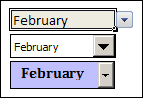
Drop Down Types
Unfortunately, there’s no way to make the font size bigger, which is one of the drawbacks of a data validation drop down list.
There are other ways to create a drop down list though, and one of those options might work better in your worksheet.
We’ll compare these types of Excel drop down lists:
- Data Validation List
- Form Control Combo Box
- ActiveX Control Combo Box
Data Validation Limitations
Data validation is a great feature, and you can use creative formulas to create flexible lists, such as dependent drop down lists. However, it has limitations:
- the font size can’t be changed
- only 8 rows are visible at a time
- only the active cell shows a drop down arrow.
You can’t change those settings, but you can colour the data entry cells, to make them obvious to the worksheet users.
Form Control Combo Box
Instead of using data validation, you could use a Form Control Combo Box. It gives you a bit more control over the appearance of the drop down list.
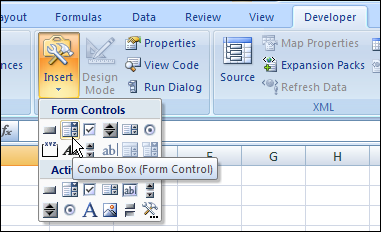
You can adjust the number of drop down lines in the Form Control Combo box, so you can show all 12 months, without a scroll bar.
You can also link the combo box to a cell, so the selected item number appears on the worksheet.
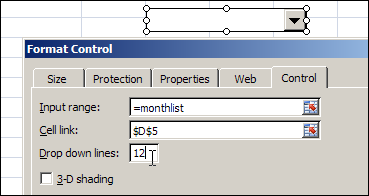
The drop down arrow is always visible, so the Form Control combo box is easy for users to find on the worksheet.
The font size can’t be changed though, so the list would be hard to read on a zoomed worksheet.
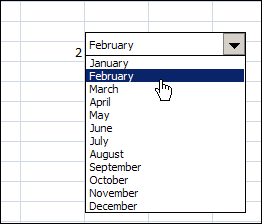
Also, you can’t type in the box, so click the arrow, then select an item from the list. That item’s index number (its position in the list) is entered in the linked cell. In the screen shot above, February was selected, and a 2 is entered in cell D5.
Get the Item Name
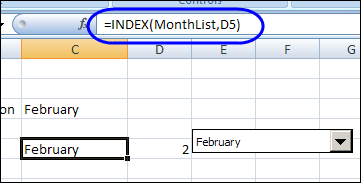
To show the item name, instead of the item number, you can use an INDEX function in another cell.
In this example, the INDEX function returns a month name from the MonthList named range, from the row number (2) for the selected month (February).
ActiveX Combo Box
Another drop down list option is to use an ActiveX combo box. This is similar to the Forms Control combo box, but has more properties that you can adjust.
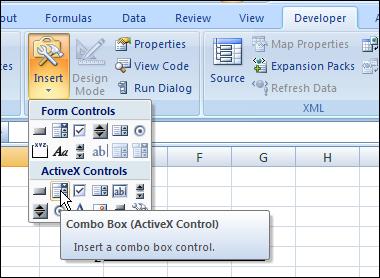
After you insert a combo box, right-click the combo box, and click Properties.
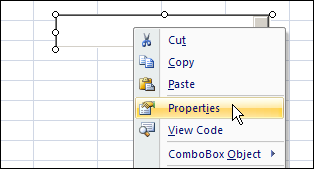
You can set the properties, such as font, font size, number of rows, and even include multiple columns.
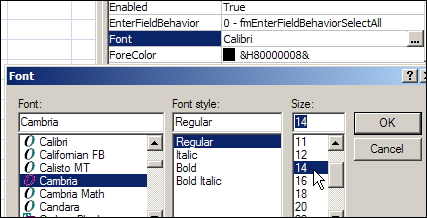
If you know that a worksheet will be zoomed most of the time, you can use a larger font, to make the list easier to read.
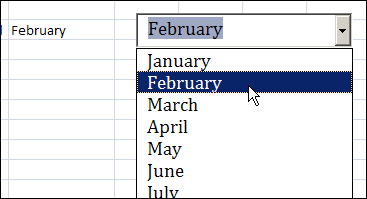
This combo box can also be linked to a worksheet cell, and the value is entered in that cell, when you select an item from the list.
Also, you can type in the combo box, and the text autocompletes as you type, finding the first matching item in the list.
Combine the Drop Down Lists
To make the most of the data validation features, while allowing font changes, autocomplete and more rows, I sometimes combine data validation with a combo box.
There’s only one combo box, hidden at the top of the worksheet, and bit of programming makes the combo box appear when needed.
When a user double-clicks on a data validation cell, the combo box appears, and displays the data validation list for the selected cell. If users don’t want to use the combo box, they can simply click on the arrow in the cell, and use the data validation list.
Watch the Drop Down Lists Video
To see a demonstration of the 3 types of drop down lists, you can watch this Drop Down Lists video.
____________
Need a little help, new to excel but with its flexability I need it…all I want to do (famous last words) is create a drop down box to show items in col. 1(I know how to do a drop down box) and when selected I want to show items I have in col. B Col. C and Col D.
Example;
A B C D
code error meaning countermeasure
When a selection from the drop down box (A) is selected, the corresponding data in col. B through D will be displayed…
Can you help me..
Norm
Norm, you could use a VLOOKUP formula in the adjacent cells, similar to this Excel order form
We have a client data base that has about 1000 entries and it takes a while to scroll through the list each time. I am trying to update where the user can start to type the customer id and it pulls up possible selections based on the first couple of letters or numbers entered. Is this possible?
Using the activeX control, can I make it work like option 2 – choose an item off the list, and make a number appear in the linked cell? I need the activex because I need to the font bigger, but want a corresponding number in the neighboring cell, not the words.
Hi All
I was wondering if someone would kindly help me. I am creating a Userform a need to create a dependent list in a combobox i.e. When a category is selected only items that relate to that category are displayed in the list of choices. I can create dependant lists using data validation in a worksheet but cannot translate this to a Userform. Is it even possible to do this?
Any help provided would be greatly appreciated.
Thanks
I have question on the Data Validation with a Combo Box. I created it in my spreadsheet (thanks for the instructions!) but am running into issues. Users can type their own entry, and there is no error message after they move to the next cell. How can I get an error message to force all entries to be from the list?