
Unfortunately, no one has found a way to zap users with a mild shock from the keyboard, so we have to rely on messages to help people do the right things in Excel.
Create Excel Messages – No VBA
You can create messages without Excel VBA. For example, you can add a comment to a cell,
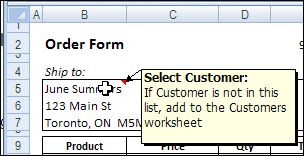
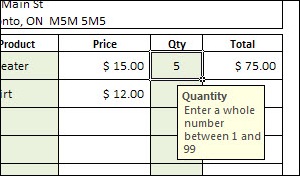
or use a data validation input message.
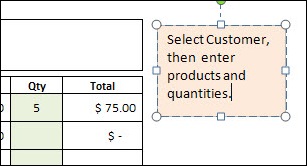
To keep things really simple, you could even type a message in a cell, or in a textbox on the worksheet.
Create a Message With Excel VBA
Sometimes you need a message with more impact – visual impact, that is. Maybe the users are ignoring your polite and informative worksheet messages, and you want a message that’s hard to miss.
You can use Excel VBA to create a message box, and make that message appear when someone tries to print the order form.
Create the Macro
You can’t record all the steps for creating a message, but you can use the Record Macro button to get started.
- At the bottom left of the Excel 2007 window, click Record Macro
- Type a one word name for the macro, e.g. CustomerMessage
- Store the macro in ‘This Workbook’ and click OK
- At the bottom left of the Excel 2007 window, click Stop Recording
To see the macro code that you created:
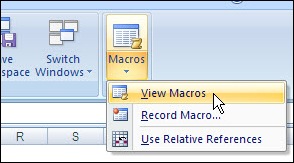
- On the Excel Ribbon, click the View tab, then click Macros
- Click View Macros
- Click on your macro’s name, then click Edit
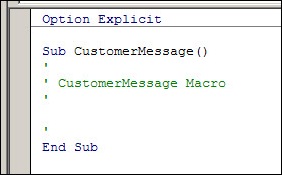
The Visual Basic Editor (VBE) opens, and you can see the macro. There are Sub and End Sub lines, and one comment line.
Type a Line of Code
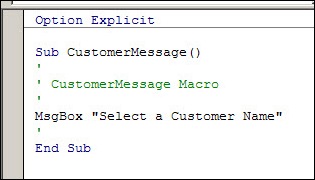
You can’t record the code that shows the message box, so you’ll have to type it.
- Click in the blank line between the Sub and End Sub lines.
- Type this code: Msgbox “Select a Customer Name”
Test the Macro
To see warning message, switch back to Excel.
- On the Excel Ribbon, click the View tab, then click Macros
- Click View Macros
- Click on your macro’s name, then click Run
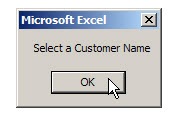
The message will appear in the centre of the Excel window.
- Click OK to close the message.
Edit the Message Box Macro
The message box appears, and the user will have to click OK before they can continue working in Excel. That should get their attention, but you can add an icon to the message box, to make it look scarier.
- Go back to the VBE, to edit your macro.
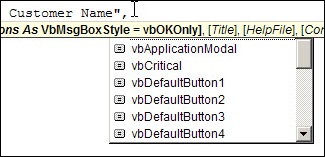
- Click at the end of the MsgBox line, and type a comma
- A drop down list of options will appear, as well as a yellow tip box.
- Use the down arrow on your keyboard to select vbCritical
- Press the Enter key to select that option
Test your macro again, to see the Critical icon in the revised message box.
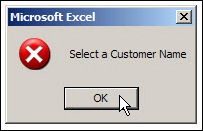
Woohoo! That should keep those pesky users in line.
Make the Macro Even Better
Next week, we’ll revise the macro again, so it only runs if there’s no customer name in cell B5. Then, we’ll make the macro run automatically, if someone tries to print the worksheet, without a customer name selected.
_________________
Previous Excel VBA articles:
Getting Started With Excel VBA
Excel VBA: Edit Your Recorded Macro
Excel VBA: Switch Column Headings to Numbers
_________________
[…] Excel VBA: Show a Message to Users […]
[…] Excel VBA: Show a Message to Users […]
[…] can use Excel VBA to show messages to someone who’s using your workbook. This messages lets the user know that a customer name must […]