
In the steps below, I’ll show how to set up an Excel workbook so you can click on a map, and see a list of fictional doctors in the state that you selected. There’s also an Excel sample file that you can download, and try this map technique for yourself!
Set up the Map
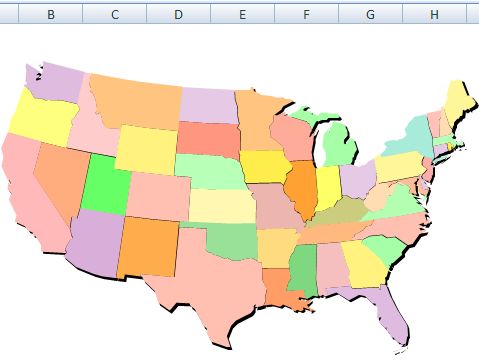
First, I found a clip art map of the continental USA, with a separate shape for each state, and pasted that into a workbook.
Next, I named the shapes, using the two digit state abbreviation.
- Click on a state shape, e.g. Washington
- Click in the Name Box, and type the two digit code – WA
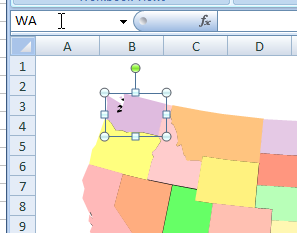
- Press the Enter key, to complete the naming.
This will be a good test of your geography knowledge and state abbreviation skills.
Set Up the List of Doctors
On a sheet named Doctors, I entered a list of fictional doctor names, state codes and number of patients.
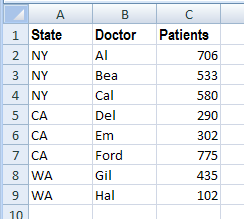
I named the range, DoctorList, using the formula:
- =OFFSET(Doctors!$A$1,0,0, COUNTA(Doctors!$A:$A), COUNTA(Doctors!$1:$1))
as described in my Dynamic Named Ranges tutorial.
Use an Excel Advanced Filter
To get a list of doctor names for a specific state, I’ll use an advanced filter, and a macro to run the advanced filter.
To use an advanced filter, I’ll set up two ranges in the workbook:
- 1) Filter Criteria Range
- 2) Filter Extract Range
Those two steps are explained in the sections below.
1) Set Up the Filter Criteria
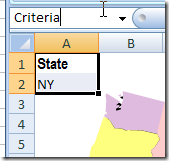
On the Map sheet, I set up a criteria range for the filter, with the State heading in cell A1, and a State code in cell A2.
To name this range, I selected cells A1:A2 and typed Criteria in the Name box, then pressed the Enter key.
2) Set Up the Filter Extract
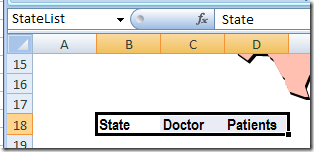
Next, to create an extract range, I copied the headings from the Doctor list, and pasted them below the map.
With the pasted cells still selected, I named that range StateList.
This is where the list of fictional doctors will appear, after you click a state in the map.
Add the Filter Macro
To “magically” create the list when the map is clicked, I needed an Excel macro.
So, I added a module to the workbook, and entered some VBA code, shown below.
The macro. named GetDoctorList, uses an Advanced Filter, to extract a list of doctors for the selected state.
Sub GetDoctorList()
On Error Resume Next
Dim strState As String
Dim sh As Shape
Dim wsMap As Worksheet
Dim wsDoctor As Worksheet
Dim wsList As Worksheet
strState = Application.Caller
Set wsMap = Worksheets("Map")
Set wsDoctor = Worksheets("Doctors")
wsMap.Range("A2").Value = strState
wsDoctor.Range("DoctorList").AdvancedFilter _
  Action:=xlFilterCopy, _
  CriteriaRange:=wsMap.Range("Criteria"), _
  CopyToRange:=wsMap.Range("StateList"), Unique:=False
wsMap.Activate
wsMap.Range("A1").Activate
End Sub
Assign the Macro to Shapes
The final step is to assign the GetDoctorList macro to each State shape in the USA map.
You could do this manually, if there were just a few shapes:
- Right-click on each shape
- Click the Assign Macro command
- Select the GetDoctorList macro
- Click OK
Macro to Assign Macros
It might take quite a while to assign the GetDoctorList macro for all 48 states!
So, I wrote another macro, to do the work for me.
You’ll only have to run this macro once, while setting up the workbook.
The macro is only a few lines long, and it assigns the GetDoctorList macro to each shape on the worksheet named Map.
Sub AddMacro()
Dim sh As Shape
For Each sh In Worksheets("Map").Shapes
    sh.OnAction = "GetDoctorList"
Next
End Sub
Run the Filter
Now, to run the filter, you can click on a state in the map.
When the GetDoctorList macro runs, it does the following steps:
- First, it puts the state code in cell A2
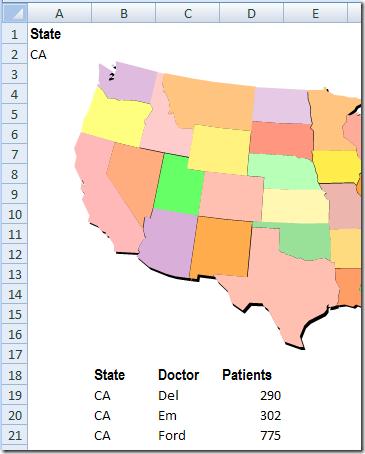
- Next, the macro runs an advanced filter, which puts the list of doctors in the extract range, starting in cell B18.
The criteria range, and the extracted list are shown in the screen shot below.
The state shape for California (CA) was clicked, and the filtered list shows the fictional doctors from California.
Get the Sample File
To get the Excel sample file with the USA map and list of fictional doctors, go to the Excel Filter Sample Files page on my Contextures site.
- On that page, go to the section named: Filter Files FL0011 – FL0020
- In that section, look for the sample file named FL0012 – Map Based Filter, and click its download link.
- The zipped Excel contains macros, so be sure to enable those, if you want to test the map filter macros.
More Excel Filter Examples
Advanced Filter Criteria Slicers
_________________
Hi Debra, I’m new at this forum, and must say I’m quite impressed !!!
I was delighted by this article, and wanted to use it in a similar way, but with a twist: i wanted to display something within every shape, for instance, revenue. But I was not able to find the right property, if possible.
I played around with .textframe.characters.text, but the text still doesn’t appear.
Any suggestions?
Kind Regards,
Martin
Martin,
in a comment on a post called “Choropleth Map Template USA by Counties”, Harold points to a map of Australia displaying the exact data in textboxes.
You will find his comment here:
http://www.clearlyandsimply.com/clearly_and_simply/2009/08/choropleth-map-template-usa-by-counties.html
and his workbooks for free download here:
http://www.xlnumerics.com/images/stories/HG-XLN/Australia-by-state.xls
I hope this will be helpful.
Thanks Robert for your comment. I just downloaded the file and it looks like what I need. I’ll let you know my advances then.
Thank you for your article.
[…] Click a Map To Filter Excel Data – set up an Excel workbook so you can click on a map of the USA, and see a list of fictional doctors in the state that you selected. […]