
Yes, the weekend is over, but another one is just five days away! To make it easier to keep track of Saturdays and Sundays, you can use conditional formatting to highlight weekend dates in Excel.
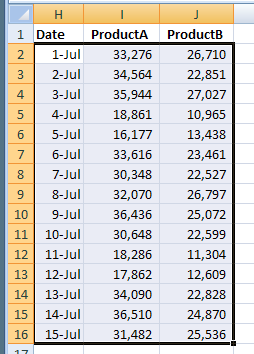
In this example, the Excel file has a list of product sales for the first half of July. We’d like to highlight the dates and sales numbers that fall on a weekend.
Add Conditional Formatting
To highlight the weekend sales:
-
- Select all the cells where conditional formatting should be applied, cells H2:J16 in this example. Cell H2 is the active cell in the selection.
-
- On the Ribbon, click the Home tab, then click Conditional Formatting.
- Click New Rule, to open the New Formatting Rule dialog box
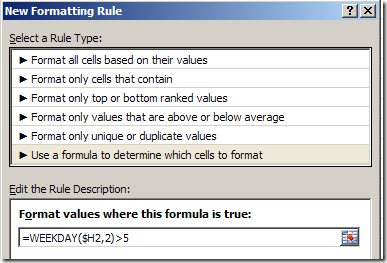
- In the Select a Rule Type list, click Use a formula to determine which cells to format.
- In the Formula box, enter a formula to check the weekday of the date in row 2, which is the active row on the worksheet:
=WEEKDAY($H2,2)>5
- Click the Format button, and select a Fill colour, or other formatting options, then click OK.
- Click OK to close the New Formatting Rule dialog box.
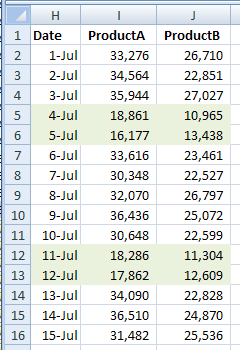
The weekend rows are highlighted in green.
The WEEKDAY Function
The WEEKDAY function checks the date in column H, and returns a weekday number, based on a numbering system (2) that starts with Monday as 1. Saturday is 6 and Sunday is 7, so we want to highlight weekday numbers that are greater than 5.
Instead of that numbering system, we could have entered 1 or 3 as the second argument (return_type) in the WEEKDAY function.
If we entered a 1, or omitted the second argument, the numbering would start with Sunday as 1. With a 3, Monday would start as 0, and end with a 6 on Sunday.
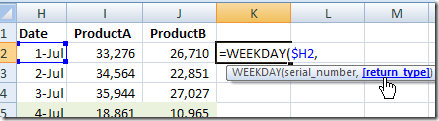
I used the 2 because that groups Saturday and Sunday at the end of the numbering, and we can simply test for >5.
More About Conditional Formatting
On the Contextures website there are basic instructions for conditional formatting, and other examples of ways you can use it.
Watch the Video
Here’s a short video that shows the steps in Excel 2007.
More Excel Date Tips
Fix Excel dates that won’t change Format
AutoFill Excel dates in series or same Date
How to prevent grouped dates in Excel
Excel filter for date range 2 Ways
Count items in a date range in Excel
__________________
@Sissy,
In that case, use a 1 in place of the 2 that Deb used in the 2nd argument to the WEEKDAY function or simply omit the 2nd argument altogether as 1 is the default value. Doing this will make the WEEKDAY function return 6 for Friday’s and 7 for Saturday’s. This formula should work for you…
=WEEKDAY($H2)>5
I have a template that I downloaded online from MSO website. It automatically highlights the weekend days/columns. Further to that, based on start, no of days, and end dates (using a WORKDAY formula) the cells are then formatted with a colour on the gantt, therefore it excludes weekends, however the weekend cells are still formatted with another colour. What formula will tell it not to format the weekend cells at all, but keep them highlighte?
I had to add a function to ignore blank cells.
=AND(NOT(ISBLANK($H2)),WEEKDAY($H2,2) > 5)
As you have shown the example it looks for dates in a column H.
But I have a dates in a Row 2. So i want to highlight cells in a column. how would i do that???
you have to put $ as like A$2
please clear your quarry
I tried the formula to ignore blank cells but I’m not getting it to work. Also when the saturday and sunday are highlighted I would like to record in a column a day each. When we work on weekends we get a compensatory day for each day.
In some version of Office you need use ; instead of ,
=AND(NOT(ISBLANK($H2));WEEKDAY($H2;2) > 5)