
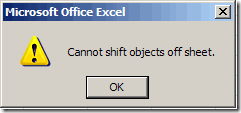
Recently, while working on a small worksheet in Excel, I tried to insert a new row. Up popped an annoying error message, “Cannot shift objects off sheet.” Here’s how I investigated the problem, and fixed it with a simple keyboard shortcut – Ctrl + 6
Here is the pop-up message that appeared on my screen.
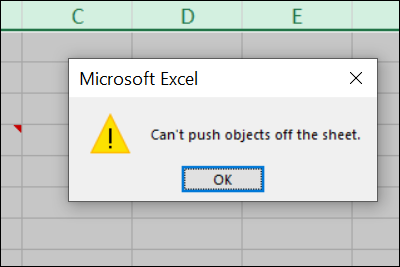
[Update] In later versions of Excel you might see this error message: “Can’t push objects off the sheet”
Video: Fix Cannot Shift Objects Error
This video shows the steps to fix the problem, and the time-saving shortcut. There are written steps below the video.
View a List of Objects
It was odd – as far as I knew, the worksheet didn’t have any objects or comments, and only a few rows. What was causing the problem? Maybe there were some hidden shapes that I’d added, and forgotten about, or a comment tucked in a dark corner.
To see what’s on a sheet in Excel 2007, you can use the Selection and Visibility Pane.
- Click the Home tab on the Ribbon.
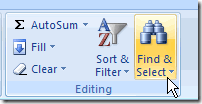
- At the far right, click Find & Select, then click Selection Pane.
It lists all the visible and hidden shapes on the worksheet, including comments, and a data validation drop down. Visible objects have an eye icon at the right, and hidden objects have an empty icon.
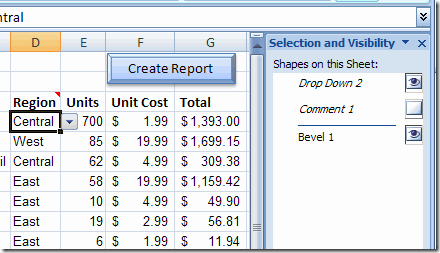
In this example, there’s a comment, data validation drop down, and a Bevel shape on the worksheet.
A Fix For Excel 2007
However, in my problem workbook the Selection Pane list was empty. The old Properties fix wouldn’t work, because there were no objects to change.
Fortunately, a search of MSKB turned up an article with the solution:
http://support.microsoft.com/kb/211769
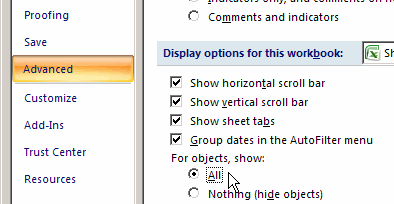
Method 1 solved the problem for me – in Excel Options, change the workbook Display setting for objects, from Nothing (hide objects) to All.
The keyboard shortcut to toggle this setting is Ctrl + 6 – much quicker than opening the Excel Options window.
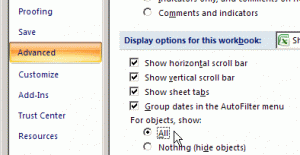
Problem solved, and I’ve had no more trouble inserting rows.
If that didn’t work for your Excel worksheet, try changing the object properties, as described in the next section.
Change the Object Properties
In older versions of Excel, this problem usually occurred if you tried to insert columns and there was a comment hidden in one of the columns to the right.
To fix the problem in those versions:
- If the comment isn’t showing, right-click the cell with the comment, and click Show/Hide Comment
- Right-click on the border of the comment, and click Format Comment
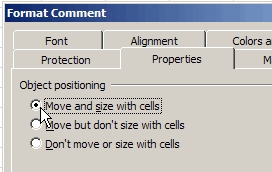
- Click the Properties tab (if you only see a Font tab, click Cancel, and try again — be sure to click the comment border, not inside the comment)
- For Object Positioning,
- choose Move and size with cells
- OR, choose Move but don’t size with cells
- Click OK, to apply the change
More Solutions to Cannot Shift Objects
[UPDATE] Thanks for adding your comments below, and here are other solutions to this problem, based on those comments.
- Greg found and deleted 4 comments, and that solved the problem in his workbook. To find the comments, he clicked the Review tab at the top of Excel. Then, in the Comments group, he clicked the Next button.
- In newer versions of Excel, click the down arrow in the Notes group, then select Next Note.
- Shaun found it tedious to change each comment’s Move/Size properties individually, and wished it could be done with a single setting. I’ve added macros to do that on my Contextures site.
- Judy solved the problem by removing hyperlinks from all her graphics.
- Shane fixed the problem by moving the comments, instead of deleting them.
Working with Shapes and Objects
For more information on working with Excel Shapes, and some of the problems you can encounter, visit the Delete or Hide Objects/Controls page on Ron de Bruin’s web site.
________________________
Did not work for Excel 2007. Trying to filter – keep getting the message. I have comments but no comments in the worksheet.
The first suggestion worked good. thanks for help
Thanks A Lot
I spent almost 1 hour to find the solution
Noticing all the comments in this thread made about “Excel comments” and how deleting them helped…I tried another path. Looking at all my comments I noticed a few of them extended into the columns I wanted to hide. I had already hidden all of the columns to the right except one for a right border and wanted to delete 4 columns to the left of that border. I simply moved each comment to the left so it’s right edge was not extended into any of the remaining columns needing to be hidden. Tried hiding the columns again and they hid properly. Excel 2007 did not like hiding columns where there was not room to show the comments as they were situated.
@Shane, thanks for sharing your solution!
You are welcome. I need to correct one point and add another.
Correction: where I said “and wanted to delete 4 columns” it should read “and wanted to hide 4 columns”
Addition: I had used the CTRL + 6 which by itself did not help. But combined with moving the “comments” location it then worked.
I got the message when i tried to insert a row
Try this
Close all worksheets other than the one with the problem.
Click “Office Button” – top left hand corner of spreadsheet
Select “Excel”
Select “Advanced”
Scroll down to “Display”
Select “No Comments or Indicators”
Scroll down to “Display Options for this worksheet”
Select “All”
Click”OK”
Then repeat process again…
Click “Office Button”
Select “Excel”
Select “Advanced”
Scroll down to “Display”
Select “Indicators only comments on hover”
Click”OK”
Worked for me.
If all your comments have been deleted and CTRL+6 doesn’t work. Another cause if if you’ve hidden a bunch of columns.
If you data table is in columns “A=1” to “C=3”, and then from column “E=5” through “XFD” you hide everything. You will only be able to hide ONE column before you get an error message “Cannot Shift Objects off Sheet”.
– If you want to hide 2 columns, hide columns “F=6” to “XFD”, so that you have two blank columns (D and E)
– If you want to hide 3 columns, hide columns “G=7” to “XFD”, so that you have Three blank columns (D,E and F)