
Last week I described how I use X entries in hidden columns, so I can easily hide specific rows in an Excel worksheet. In the comments for that article, AlexJ mentioned that he uses outlining in his workbooks, to show and hide the rows and columns.
Alex sent me his sample file, and gave me the okay to share his technique with you. I don’t use outlining too often, and find it a bit fussy to work with, but Alex has put it to good use in his sample file.
He’s made it easy for users to work with, by putting a simple set of buttons at the top of the worksheet. I’ll certainly give outlining another try, based on what Alex has done.
Buttons Let Users Manage the Worksheet
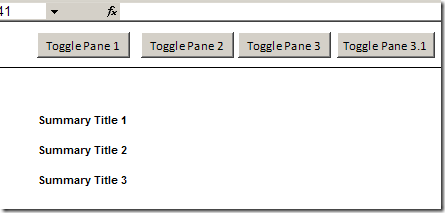
Here’s a screenshot of Alex’s worksheet with all the outlines collapsed. Only the section titles are showing.
Buttons at Top
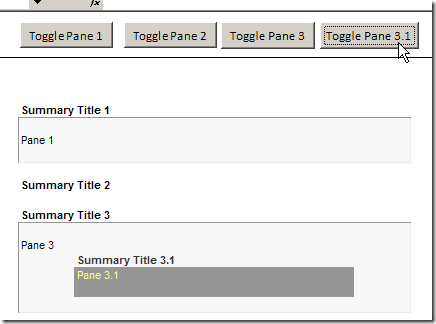
In the frozen pane at the top, there are buttons that the user can click to show or hide a specific section of the worksheet. Click a button to expand a section, and you can see its detail rows.
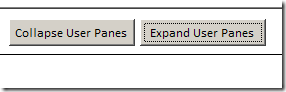
There are also buttons to expand and collapse all the sections at once.
Set up the worksheet
Before the buttons will work, range names and outlines have to be added to the worksheet. Alex uses hidden columns to display the names, and only the workbook administrator would see those.
Code creates an Admin toolbar when the worksheet is activated, with buttons to show specific sections, the Outline bars, and the row and column headings. When everything is set up, the Admin toolbar can be hidden.
Update — Alex added this setup information:
- You may notice that rows 2 and 3 are under the outline, but row 1 is not.
This is because Excel has an annoying habit of not unhiding the first row if it is under the outline AND the top rows are in a frozen pane. - As a result, my standard is to use row 1 as a visible spacer row, and rows 2, 3 (or more if required) are hidden as helper rows.
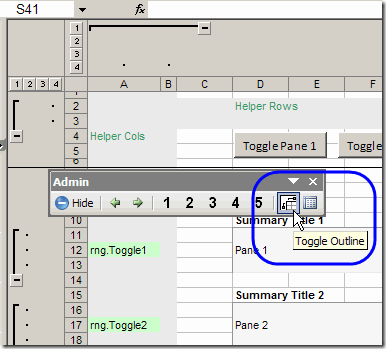
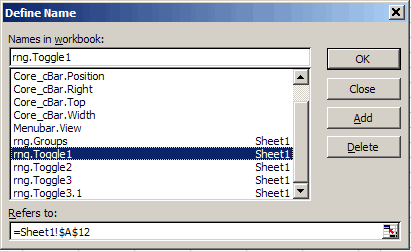
Sheet level names are assigned to the cells in the hidden column. Those names are used in the code that hides or shows the selected section.
Download the Sample File
You can download Alex’s sample file from the Sample Excel Spreadsheets page at Contextures.com. In the UserForms, VBA, Add-Ins section, look for UF0008 – Hide Rows With Outlining.
Also, thanks to Sam, who shared his code in the comments below. You can download a file with Sam’s code at this link: UF0009 – Hide Outline Rows With Keyboard Shortcut. Sam’s code uses the OnKey method, so the left and right arrows run macros that show and hide the outline.
________________________________
Hi, Sam, can you give any thoughts on this outline rows:
Fruits
Orange
Big Orange
Big Navel Org
Big Local Org
Small Orange
Small Navel Org
Small Local Org
Apple
Big Apple
Big Green App
Big Red App
Small Apple
Small Green App
Small Red App
CK,
Sorry I didn’t notice your comment in July!
I’m guessing that the problem will be with named range scope – workbook vs worksheet names which have the same name. I’ll see if I can duplicate the problem.
JR, the admin toolbar is created when the Workbook_Open event fires. (Enable your macros)
CK – I’m not sure what your problem is. To test this, I copied sheet1 and then operated the controls on both sheets. They work, and they work independantly. If you want to sent your file to me I’ll look at it. My email is in the sample file.
thanks a lot AlexJ, i can’t open the sample file, basically i want to group them according to their indent levels:
Fruits – indent 0
Orange – indent2
Big Orange – indent 4
Big Navel Org – indent 6
Big Local Org – indent 6
Small Orange – indent 4
Small Navel Org – indent 6
Small Local Org – indent 6
Apple – inde nt 2
Big Apple – indent 4
Big Green App – indent 6
Big Red App – indent 6
Small Apple – indent 4
Small Green App – indent 6
Small Red App – indent 6
Hello,
I am an excel Novice and need help with excel. I can send a screen shot (it didn’t let me paste it here) that can help me explain my problem. If someone can respond to me i can send them the screenshot and explain my question. i would appreciate our help.
Kind regards,
AK