
How can you create a chart from annual or monthly data, and make the results easy to understand? See how to compare annual data in Excel Clustered Stacked Chart — like a clustered column chart, but with stacked columns, instead of normal ones.
Seasonal Data for Meat Production
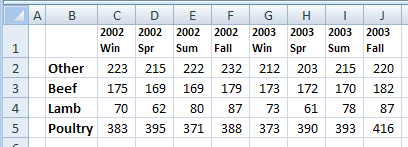
For example, the table below shows meat production in the UK, per season, over 2 years, in thousands of tonnes.
An Excel clustered stacked chart could show the fluctuations in production for each meat type. Did production change much from 2002 to 2003? For all meat types? Are there seasonal differences in production?
Clustered Stacked Chart
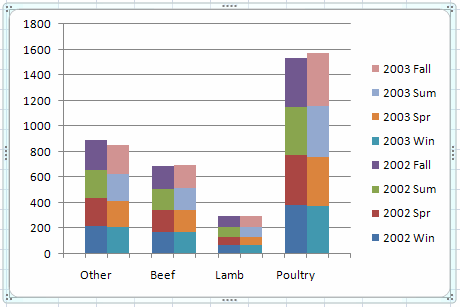
Here is an example of an Excel clustered stacked chart, based on the sample data shown above. We’ll see how to create a chart like this, but first we’ll look at the two types of charts it’s based on — clustered columns, and stacked columns.
Create a Clustered Column Chart
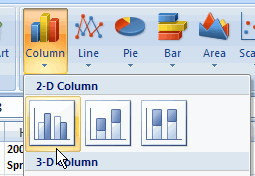
To start, I’ll create a Column chart, using the first 2-D Column chart type, which is a Clustered Column.
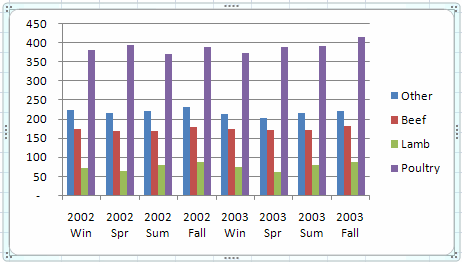
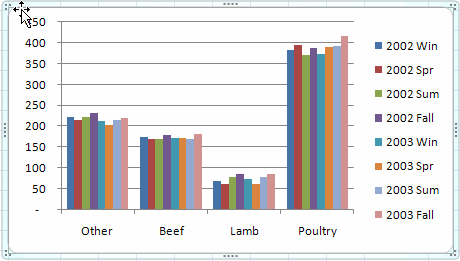
This chart is a bit crowded, but lets me compare the meat types within each year/season, or follow one type across all the year/seasons.
For my presentation I want to focus on the meat types, rather than the seasons, so I’ll switch the rows and columns.
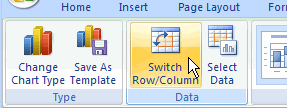
This makes the meat types the categories along the x-axis, and the seasons are now series names in the legend.
Create a Stacked Column Chart
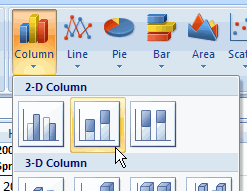
The chart is better, but I’d like to compare one season’s production to another, or compare the 2 years, so I’ll try a Stacked Column chart instead.
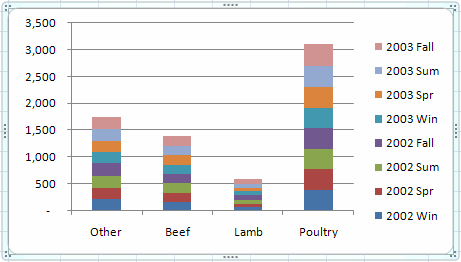
The Stacked Column chart is less crowded, and lets me compare the total production for each meat type. If I squint, I can almost see the sections for each season in the Lamb stack.
Arrange Data for Excel Clustered Stacked Chart
The Stacked Column chart is close to what I want, but it doesn’t highlight the years and the seasons. I’d like to keep the Stacked Column chart, but with the years clustered, or the seasons clustered. Unfortunately, there isn’t an Excel clustered stacked chart type, so I’ll have to create my own.
The key to creating a Clustered Stacked chart is to arrange the data with:
- blank rows where you want columns separated
- data for different columns is on separate rows.
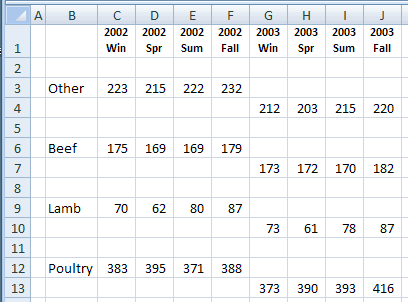
In my data I’ll put the 2002 and 2003 data in separate rows, with a blank row after each meat type.I also added a blank row before the first meat type, to create space at the left in the chart.
The new data arrangement looks like this:
Create an Excel Clustered Stacked Chart
I created a Stacked Column chart from this data, then changed the Gap Width to zero, and adjusted the series, to include the first and last blank rows.
When it was finished, the Excel Clustered Stacked chart looked like this:
The stack on the left of each pair is 2002 and the stack on the right is 2003. Now it’s clear that poultry production went up slightly in 2003, and the “Other” category went down.
Cluster By Season
To compare the meat types per season, I could change the data arrangement. Instead of four columns of 2002 data, then four columns of 2003 data, I could arrange the data by season, as shown below.
The first two columns have the Winter data, and the other seasons follow.
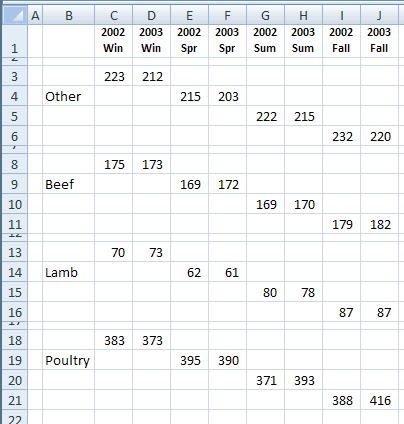
With this data arrangement, the Excel Clustered Stacked Chart has 4 stacks in each cluster – one for each season.
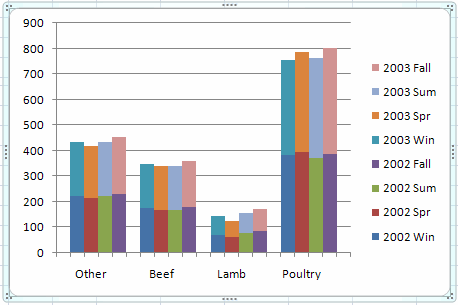
With this arrangement, you can see that for all meat types, production is highest in the fall.
Excel Clustered Stacked Chart Utility
If you don’t have the time or patience to arrange your data and create your own Clustered Stacked Column chart, Jon Peltier has an Excel Chart Utility.
Reasonably priced, the utility will quickly pay for itself, because you won’t have to waste your time fiddling with data arrangements and chart settings. Just select your data, click the Cluster Stack Chart button on Excel’s Ribbon, select a couple of options, and click OK.
Instead of a long, painful process, the chart is created in a few seconds. A new sheet is inserted in your workbook, with data linked to your original data, and a shiny, new Clustered Stack Chart.
OMG this was so helpful. I’ve been trying to figure out how to do this for years. Thanks for the great tips.
Your tips were incredibly easy and on the point … got me the results I wanted in 10 minutes. THANKS!
THANK YOU! This was EXTREMELY helpful, and the instructions were very clear – along with the visual aid. Great tips with very clear explanation.
Thanks VERY much for this extremely helpful post!You saved me.
Thank you so much for the great tips! Your instructions and examples were amazingly clear and saved me from hours of frustration. If I get accepted to this conference, you are going in the acknowledgments!
Great information, too bad Microsoft takes a step backwards every upgrade. You kids will not remember all the prior versions of excel, before wizards, I do. In those days you could figure it out, excel was intuitive. Now you have to rely on lame “HELP”. Thanks, tips like this tell me some people are still thinking for themselves – good work.