
This week I’ve been working on date formulas, from very simple ones, to complex formulas that calculate workdays per month, based on start and end dates that can span several months.
Extract Information from a Date
Many times I need to pull a bit of information from a date, such as the year, month or weekday.
In the section below, I’ve listed the sample Excel formulas I would use, to calculate specific dates in Excel.
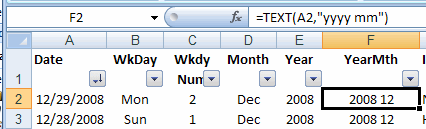
- For all formulas, the date — December 29, 2008 — is in cell A2.
Date Calculation Formulas
Here are the formulas to extract information from a date in cell A2.
|
To Calculate |
The Formula |
The Result |
| Year | =YEAR(A2) | 2008 |
| Month Number | =MONTH(A2) | 12 |
| Month Name (short) | =TEXT(A2,”mmm”) | Dec |
| Month Name (long) | =TEXT(A2,”mmmm”) | December |
| Day of the month | =DAY(A2) | 29 |
| Weekday Number | =WEEKDAY(A2,1) | 2 |
| Weekday Name (short) | =TEXT(A2,”ddd”) | Mon |
| Weekday Name (long) | =TEXT(A2,”dddd”) | Monday |
| Year Month | =TEXT(A2,”yyyy mm”) | 2008 12 |
Using Calculated Dates in Pivot Table
If I plan to create a pivot table from data that contains a date field, I usually calculate the year and month in the source data.
Then I can add those fields to the pivot table, instead of the individual dates.
Yes, the pivot table could automatically group the individual dates by year and month, but that can limit other functions in the pivot table.
For example:
- if two pivot tables are based on the same data, grouping one pivot table by month would cause the other pivot table to also be grouped by month.
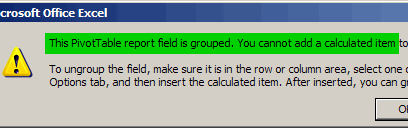
- if a field is grouped, you cannot add calculated items to the pivot table
Video: Pivot Table Grouping Tips
This video shows how to group pivot table dates by month and years, and how to group text items manually.
There are written steps, and an Excel workbook, on the How to Group Pivot Table Data page, on my Contextures site.
Pivot Table Grouping
For more information on Excel pivot table grouping, go to the How to Group Pivot Table Data page, on my Contextures site.
There are examples for grouping dates, number and text fields. You’ll also see solutions for fixing pivot table grouping problems, such as the error message, “Cannot group that selection”
Hello.
I am a newcomer here.
I became a fan of this site from the very beginning.
Few days ago I tried to make pivot items visible and your idea helped me a lot and what more important drove me to this site.
THANK YOU VERY MUCH INDEED.
Now I have a little problem with the date of last save in VBA. I want to show a MsgBox when user opens the file. Of course I can use spreadsheet cell to register the date whenever Excel is saved. But Excel stores this date in workbook properties but I cannot find it in VBA.
Can you help?
Best regards
Mariusz
Calculated fields in pivot tables is one of those features that seem like such a good idea when listed in a bullet point, but which don’t live up to their billing. So I’ve usually added a calculation column to the source data.
It used to be a real pain to add these calculations to the data. Whenever more records were added, you had to drag the formula down to include all of the rows. Then you had to update the pivot table source range.
With Excel 2003’s Lists (and their descendent, Excel 2007’s Tables), the data source adjusts automatically, and any calculations also autofill themselves.
hello;
i appreciate highly your blog and i had learned interessting things from you.
THank you very much.
I use excel every day more than 10 hours!
i love excel because he is like women : a lot of sercets and very funy!
thank you avery much again and again…
i like very much your book “Beginning PivotTables in Excel 2007” and i recommanded because your style is so clear that your reader will undertsand your ideas very easily.
is it difficult to write a book? i plan to make a try…
your faithfully
Mariusz, you can use the FileDateTime in VBA. I’ll post an example tomorrow.
Jon, you’re right, calculations in the source data are usually less of a headache, than trying to do them in the pivot tables. And it still surprises me when I enter a formula at the top of a table in Excel 2007, and it automatically fills down.
And yes, ‘Just to thank you about’, it is difficult to write a book. The hardest part is sitting in the chair for the hundreds of hours that it takes, and staying focused. Thanks for letting me know that you liked it!
Debra, thank you very much.
This is exactly what I needed.
Best regards
Mariusz