
In Excel, you might have a long list of orders with a grand total at the end. If you filter the Region column, so the list only shows one region’s sales, you’d like the total to include only those items. Here’s how to total a filtered list in Excel.
SUM Function Problem
If you used the SUM function in the grand total cell, the result won’t change if a filter is applied. This list is filtered to show orders from the West Region.
At a glance, you can see that the Grand Total is much higher than the records listed. There are only 3 orders visible, but the order count is calculated as 49.
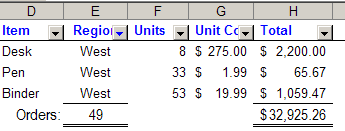
Instead of SUM or COUNT, you can use the SUBTOTAL function, and only the filtered rows will be included in the grand total.
Create a SUBTOTAL formula
A quick way to create a SUBTOTAL formula is to:
- Apply a filter to the list. In this example, the Region column is filtered for “West”.
- Select the cell where you want the grand total.
- On Excel’s Standard toolbar, click the AutoSum button, or on the keyboard, press the Alt key and tap the equal sign key (Alt + =).
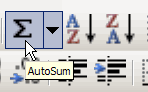
Because the list is filtered, a SUBTOTAL formula is inserted, instead of a SUM formula.
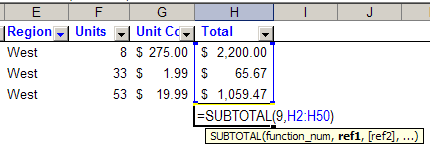
Reading a SUBTOTAL formula
Within the brackets for the SUBTOTAL function there are two arguments, separated by a comma (or a semi-colon, depending on your regional settings).
The first argument is a number that tells Excel which summary function to use in the subtotal. Most of the time you’ll use a 9, which is the SUM function.
The second argument is the range of numbers that should be subtotaled. In this example, cells H2:H50 are the cells that we want to sum.
Changing a SUBTOTAL formula
In some cases, you might want a different function in the SUBTOTAL function. For example, it wouldn’t make sense to sum the Unit Cost column, but it might be useful to know the average unit cost.
Unfortunately, when the list is filtered, only the SUM function on the AutoSum button inserts a SUBTOTAL function. If you click Average, you’ll get an AVERAGE formula. (Note: This is improved in Excel 2007, and the other functions on the AutoSum button also insert a SUBTOTAL function.)
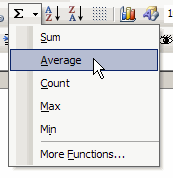
So, click Sum to create a SUBTOTAL function, then change the function number from 9 to 1, which will calculate an AVERAGE. Or, change the function number to 2, and you’ll calculate a COUNT of the numbers in a range.
There are 11 functions that you can use as the first argument in the SUBTOTAL function. The list is alphabetical, so that might help you remember some of the numbers, without going to Excel’s Help every time.
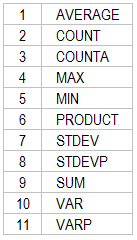
Ignore Manually Hidden Rows
In Excel 2003, and later versions, you can also use the numbers (101, 102…), as shown in the second column of the table below.
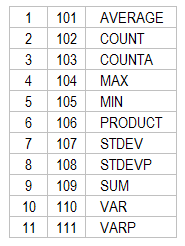
With these numbers, any rows that are hidden with the Hide command (Format►Row►Hide) will NOT be included in the subtotal.
If you use the numbers from the first column (1, 2…), any rows that are hidden with the Hide command WILL be included in the subtotal.
Note: Rows that you format to zero height WON’T be included in either type of subtotal.
More Information
There are other examples of formulas for summing and counting cells on my web site.
________________________
Debra, this is nice. I never thought to click the AutoSum button when I wanted to use SubTotal. I just tried it in Excel 2007, and it has gained some smarts. Now, when you select a different function from the list (e.g., Average) it will insert the correct function number automatically. That saves having to look at the help file. It also uses the Table-style referencing if your AutoFilter is in a Table (List in Excel 2003).
Thanks Tim, I’ve added a note to the article. That improvement will certainly make things easier.
Excel 2007 integrated lists and the subtotal Function.
You just add a Total Row into a Excel Table and choose the option: sum, count, count numbers, average and more.
This feature allows you to manage data regions as a whole, you can sort, filter, add subtotals, etc.
See an example here:
http://www.excel-spreadsheet-authors.com/excel-list.html
Hi Debra. It might be worth explicitly adding to your notes above that the Subtotal function does not ignore manually hidden columns. (Although your article only ever mentions using Subtotal for row stuff)
From http://www.ozgrid.com/forum/showthread.php?t=87457 : In Excel 2003 hiding or unhiding rows will flag the selected rows as uncalculated, even if no rows were actually hidden or unhidden. If calculation is automatic this will trigger a recalculation. This behaviour is a change from previous versions. Hiding or unhiding columns does NOT flag the column as uncalculated.
Hi, thats perfect and i dont know why i am not aware of this for all those years , but here is the question:
If i want the subtotals at the top of each interval instead of having them below the intervals, what can i do?
Thanks very much
Cenk, when you create the subtotals, remove the check mark for “Summary below data” in the Subtotal dialog box.