
Data validation is a great feature in Excel, and I often use it to create a drop down list in a cell. That helps prevent data entry errors, and limits what people can input. You can use data validation rules in other ways too. For example, you can block duplicate entries in Excel table columns, or in a range of cells.
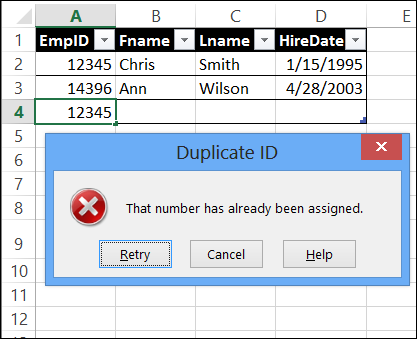
In this example, employee data is being entered in a formatted table, and each employee must have a unique ID number. The COUNTIF function can check the cells for identical entries, and warn you, or stop you, if an ID number is already in use.
Use COUNTIF to Check a Range of Cells
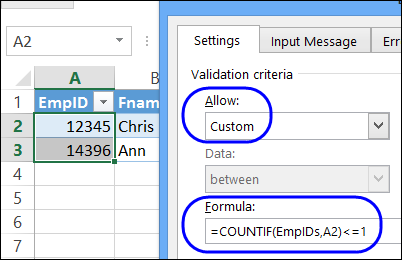
To create this data validation rule, I named the data cells in the EmpID column as EmpIDs. This step is necessary, because data validation can’t use the table column name directly.
The good news is that named range is based on a formatted Excel table, so it is dynamic — it will automatically grow or shrink if the number of rows changes. In older versions of Excel, you can use a formula to create a dynamic range.
Then, I used that range name, EmpIDs, in a COUNTIF formula.
=COUNTIF(EmpIDs,A2)<=1
To prevent duplicates, the count must be 1 or zero, and if not, a warning will appear when you enter a duplicate number.
Add an Error Message
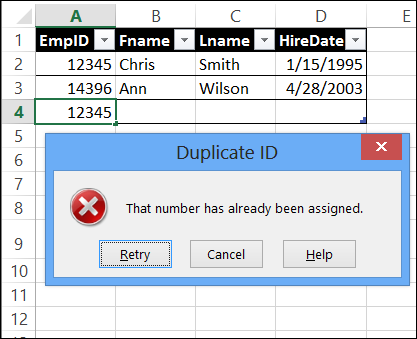
If you enter a duplicate number, the data validation rule will show a default message, telling you to try again, or cancel your entry. You can personalize that message, to help people figure out what they’ve done wrong.
In the screen shot below, the message explains that the entered number is already in use, so you can cancel that, and try a different number.
You can read the detailed instructions on my Contextures website – Prevent Duplicates in an Excel Table – and see the steps in the video below.
Video: Prevent Duplicate Entries
This video shows the steps for creating a formatted table, naming one of the columns, and setting up the data validation.
______________
i want prevent the double entry in with concatenate formula
Debra,
Love your examples. Great job!
I’m not great with VBA, but might need to use in this case but thought I would check with you first —
On a survey form, I have five different sections (lets call them Category 1, Category 2, Category 3, Category 4, and Category 5).
Each category has 4 data fields that each requires a ranking from 1-4. Each category cannot have a duplicate number appear, you must enter only once a 1, 2, 3, and 4. But, all five of the sections (or categories) will all have the numbers 1, 2, 3, and 4 entered.
I need for each category its own data validation formula that ensures that each number 1, 2, 3, and 4 have only been entered/used once and that each category does not contain a duplicate number entered.
From what I have read, I would use a “list” allow in the data validation to provide a drop down list. But I need a “custom” allow to prevent duplicates. How can I have both?
I hope that is clear. If not, please let me know.
THIS WILL BE MUCH HELP FULL FOR ME, THANKS VERY MUCH
This is very Helpful and works like a charm. But is there a way to use this feature across multiple worksheets. Like if you had a particular column on many worksheets such as account numbers that can not be duplicated throught the workbook?
I have a question on preventing duplicate entries EXCEPT FOR a specific word or text, and I am not great at formulas…
For example, if I have an entire column to enter names in, I’d want all the names to be unique, but if the word OPEN is there, that can be a duplicate entry. I was thinking of something like IF (A4=”OPEN”, COUNTIF(A$4$:A$500$,A4)=1) but that marks all of the entries invalid, instead of just other duplicates except OPEN.
Use this formula, if you want to prevent duplicate names, but allow multiple entries for “OPEN”
=OR(A4=”OPEN”, COUNTIF($A$4:$A$500,A4)<=1)