
Things have been hectic this week. I got a new laptop, with Window 8, and have spent hours installing software, and getting all my settings the way I like them.
I’ve also installed the latest version of Excel 2013, and am using it for my daily work, so there’s lots of new stuff to play with and learn.
Add Picture to Excel Comment Update
While moving files to my new computer, I’ve found a few things that need updating, like my old “Picture in a Comment” video.
I made that old video back in May 2008, when Excel still had a Toolbar. Do you remember those days? 😉
Before I show you the new “picture in a comment” video, here’s my old video, so you can see how things worked in the good old days!
- Historical Note: This was the 3rd video that I ever uploaded to YouTube! Apparently I wasn’t too proficient with the audio settings yet, because the sound is really low. I had to turn my speakers up to 50%, just to hear what I was saying.
Updated Video: Picture in Pop-Up Comment
Anyway, in the next section, you can watch my new video. It shows how you can put a picture, instead of text, into a popup comment.
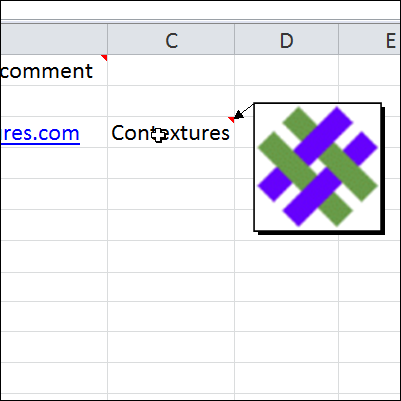
In the video, I used “picture in comment” technique to show my company logo.
- Cell C3 has my company name – Contextures.
- The red triangle at the top right corner of the cell shows that the cell contains a comment
- When you point to that cell, the comment with the logo picture pops up.
- The comment is hidden again, when you move the pointer away from the comment cell.
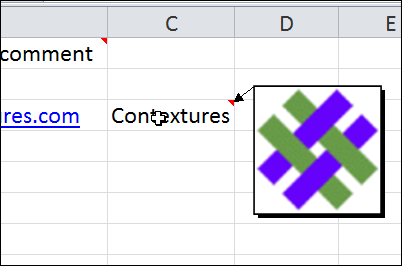
Video: Show Picture in Pop-Up Comment
To see the steps for adding a picture to a comment in Excel 2010, you can watch my updated video tutorial.
- Note: The audio is much better on this video. You won’t have to crank up the speakers to hear what I’m saying.
- And if you turned up the volume to hear my old video, remember to turn it down again!
For the written steps, and for lots more tips on working with Excel comments, you can visit the Excel Comments Tips and Tricks page, on my Contextures website.
More Excel Comment Tips
__________________
Great tips!
Haha! I did not know that i can do that in Excel. Thanks.
Your opening comments indicate Excel 2013 and a video, but the only video I see is for Excel 2010. Not the same process in Excel 2013. If you have that process, please post. Thanks! Great info!!!!
Thanks for sharing. Comments are great way to embed images too, our company uses Picture Manager for Excel which quickly inserts and automatically sizes the product images next to description and availability etc… If anyone is interested in efficient way to manage pictures in Excel for personal or business use, this tool is highly recommended! For complete details and download check their web site at Doality.com
The macro in CommentSelPic.zip created a bunch of pictures in the folder AppData\Roaming\Microsoft\Excel\XLSTART, and Excel opens ALL OF THEM as plain text every time I open any document. I had to go into that folder and delete them all.