
To make data entry easier, you can create a drop down list of items in a worksheet cell. Then, instead of typing a product name in an order list, you can select a valid product name from the list. Sometimes the Excel drop down opens at end of the list, instead of the top. Here’s how to fix that problem.
Excel Drop Down Opens At End
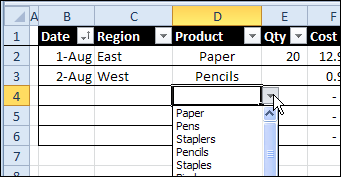
Here’s a screen shot that shows the problem. Cell D4 has a drop down list, created with Excel Data Validation.
When you click the arrow to open the drop down list, the selection goes to a blank at the bottom of the list, instead of the first item in the list.

That can be annoying if you have to scroll all the way back up to the top of a long list, where you have the put the most popular items.
Why It Happens
Why does this happen, and how can you prevent it?
In this example, the drop down list is based on a range named Products. The person who set up the list left a few blank cells at the end, where new items could be added.
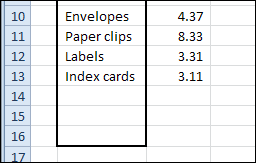
This might seem like a good idea when you’re setting up a list, but it causes problems with the data validation drop down lists.
Match the Cell Contents
When a data validation drop down list opens, it tries to match whatever is currently in the cell.
- In cell D3, Pencils was previously selected, and the list opens to Pencils.
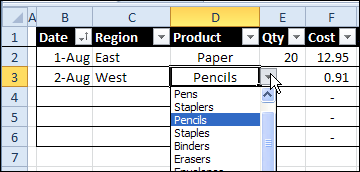
- Cell D4 is blank, so the list finds the first matching entry in the Products list — a blank row at the end of the list.
Another Problem with Blanks in List
So that’s the first problem caused by blank cells in the data validation source list — if there’s a blank cell in the source list, and the cell with the data validation list is blank, the list will open with the matching blank entry selected.
There is another problem too, and it is not just an annoyance. If you have any blank cells in the list, people might be able to enter invalid items in the data validation cells. That could cause serious problems in your workbook, if you’re depending on valid entries in those cells.
Prevent the Problems
To prevent these problems, you can remove the blanks from the source list, by using a dynamic range, which will adjust automatically when items are added or removed.
A dynamic range can be created with a formula, like the OFFSET formula shown below, or by using a named Excel table.
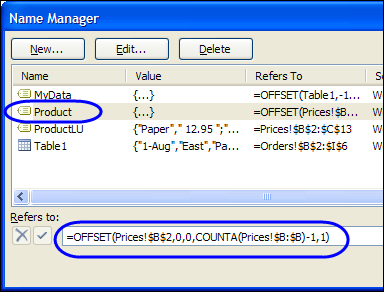
In this example, the OFFSET formula is:
=OFFSET(Prices!$B$2,0,0,COUNTA(Prices!$B:$B)-1,1)
It counts the items in column B of the Prices sheet, where the Products are listed. The heading, in cell B1, is not included in the list.
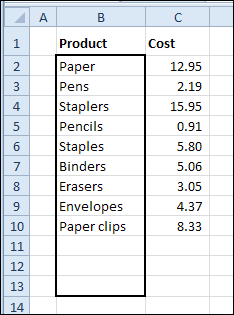
Once the dynamic range is created, the blanks are not included in the Products list, and the drop down works correctly.
Download the Sample File
To download the sample file with a dynamic range, please visit the Data Validation Tips & Quirks page, at this link: Drop Down List Opens with Blank Selected
Video: Drop Down Opens At End
To see the steps for setting up a dynamic named range for the product list, to fix the problem when drop down opens at end, watch this short video.
______________________
Doesn’t work for me. I keep getting an error message that says, “There’s a problem with this formula. Not trying to type a formula? When the first character is an equal (+) or minus (-) sign, Exel thinks it’s a formula…. To get around this, type an apostrophe (‘) first…”
Does not work if the list array has few blank cells and few non-blank below them ! It does show the first item correctly, but since the array is not limited it picks up all items in that column..
There is an easier way. Start the list with an empty cell…
Your tips were a God’s send
So many thanks
Thanks for this Debra. I’ve been using Excel since 1995 (or was it 94? 93?), but still quite often I learn new things about it. The solution in this video and page provided one of those moments and is so well explained, I just wanted to say thank you.
You’re welcome, John, and thanks for letting me know that this solution added something new to your Excel repertoire!
Hi, wondering, when I have the name list for the drop down in its own sheet. Not sure how to change the formula to also include the OFFSET and the name of the sheet that has it?