
Last week on the Bacon Bits blog, Mike Alexander showed how to send an email with the HYPERLINK function in Excel, complete with subject line and message.
Mike’s article showed how versatile the HYPERLINK function can be, and you also learned about Mike’s unique talent for poetry.
In the steps below, I’ll show you how to get the URL from an Excel Hyperlink.
Remove Hyperlinks
If you inherit a workbook full of hyperlinks, and you want to change those, so they just contain text, you can copy the cells, and paste them as values, in another location.
If you’re using Excel 2010, you can quickly remove hyperlinks from selected cells. (Thanks to Sam for this tip.)
- In Excel 2010, select cell(s) that contain hyperlinks
- Right click on any selected cell
- Click Remove hyperlinks
Macro to Remove Selected Hyperlinks
In any version, to remove hyperlinks in a group of selected cells, you can run a macro, like the one below.
Copy this code into a regular module in your workbook, then select the cells, and run the delHyperlinks macro.
Sub delHyperlinks()
  Selection.Hyperlinks.Delete
End Sub
Macro to Remove All Hyperlinks
You can also clear all the hyperlinks on the active worksheet (thanks Eric and Rick).
Sub RemoveHyperlinksOnActiveSheet()
'posted by Rick Rothstein
  Cells.Hyperlinks.Delete
End Sub
Extract Address from Hyperlink
If you paste hyperlinks as values, what you’re left with is the “Friendly Name.”
That’s the text you can see in the cell with the hyperlink, like “Sales Report” in the screen shot below.
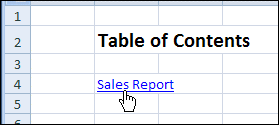
Instead of the Friendly Name, you might want to extract the hyperlink’s location.
There’s no built-in function for that in Excel, but you can create your own User Defined Function, with a bit of VBA.
Copy the HLink code, shown below, into a regular module in your workbook.
Function HLink(rng As Range) As String
'extract URL from hyperlink
'posted by Rick Rothstein
  If rng(1).Hyperlinks.Count Then HLink = rng.Hyperlinks(1).Address
End Function
Use the HLink Function
Then, you can use the HLink function in that workbook, just like any other Excel function.
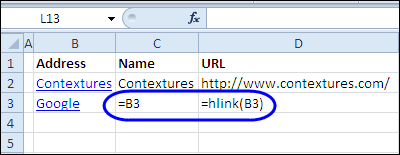
For example, to find the address for a hyperlink in cell B3, use this formula: =HLink(B3)
To extract the Friendly Name, use a simple link to the cell: =B3
Learn More About Hyperlinks
To learn more about adding and removing Hyperlinks, visit the Excel Hyperlinks and Hyperlink Function page on the Contextures website.
There are written instructions, and videos, like this one.
___________
Many thanks. I will have a play with it and let you know how I go.
Mike, when I woke up this morning I realized there is one more variant and it is one where you use HLink() function from the top of this thread.
If in Raw column H you have the value mycert.pdf and did insert-hyperlink to C:\certificates\mycert.pdf then it will display mycert.pdf and when you click it’ll open the PDF file assuming the file exists. To use this link from another worksheet you would have:
=HYPERLINK(hlink(INDEX(Raw!H:H,MATCH(A10,Raw!A:A,0))),INDEX(Raw!H:H,MATCH(A10,Raw!A:A,0)))
I am using INDEX(Raw!H:H,MATCH(A10,Raw!A:A,0)) twice. The first time I pass the result to HLink() which extracts the URL and the second time it’s used to extract the display text. I’m not using the VLOOKUP() function in that example as VLOOKUP() does not return a range object that can be used with HLink(). We can use VLOOKUP() to get the cell’s display text though.
=HYPERLINK(hlink(INDEX(Raw!H:H,MATCH(A10,Raw!A:A,0))),VLOOKUP(A10,Raw!A:H,COLUMN(Raw!H:H),FALSE))
Using INDEX(Raw!H:H,MATCH(A10,Raw!A:A,0)) is more portable than VLOOKUP(A10,Raw!A:H,COLUMN(Raw!H:H),FALSE) as it allows you to move the index column around. It does not need to be on Raw!A:A and can be after the column with your data.
A better coding for HLink() is
Function HLink(rng As Range) As String'extract URL from hyperlink
'posted by Rick Rothstein
If rng(1).Hyperlinks.Count Then
HLink = rng.Hyperlinks(1).Address
If (Len(rng.Hyperlinks(1).SubAddress) > 0) Then HLink = HLink & "#" & rng.Hyperlinks(1).SubAddress
Else
HLink = rng(1).Value
End If
End Function
I made two changes from the original. 1) The line with SubAddress accounts for hyperlinks that contain a #. Excel put the part after the # in the SubAddress field. 2) If the field does not contain a hyperlink I return its value. This allows hlink() to be used with hyperlink() if your certificate column has things such as c:\certificates\mycert.pdf or file://c:/certificates/mycert.pdf. The second change also allows you to use =HYPERLINK(“c:\certificates\mycert.pdf”) in the certificates column. You still can’t use =HYPERLINK(“c:\certificates\mycert.pdf”,”mycert.pdf”) as Excel does not give us a way to extract the hyperlink URL when the HYPERLINK() function is used.
Thankyou again. I think this is getting a bit above my pay scale at the moment (I am teaching myself as I go having been a +-*/ type spreadsheet user prior to this!) but I will sit down and try and work it out bit by bit. A part of my problem is that not all cows in the herd have pedigrees so not all the raw data has a hyperlink and the second is that your assumption of a discrete value in “H” is correct but not everything with a certificate is in H. I have the raw data set up in columns of “calf”, “sire”, “dame”. A dame and often a the sires are outside stud animal and never actually show up in the discrete H (calf) column i.e. when I am in the “lineage” sheet which picks up up to 10 generations of maternal lineage for any particular animal (using vlookup to find each dame’s breeding as I go back through the generations).
Anyway from my primitive understanding I may still be able to apply your principles to my situation. Give me a few days to “play” with it and I will see how I go.
Again, thank you very much for your time and effort.
Mike
Mike, it’s off topic for this thread but you will discover that if you use =H23, INDEX(), VLOOKUP(), etc, to get the data from cell H23 and that cell is empty that a “0” (zero) gets displayed. It’s a bit of Excel horribleness in that you get a zero when you expect a blank. The fix I do is
=IF(LEN(H23),H23,""). That’s simple enough unless the expression to get cell H23 is rather long and you end up with=IF(LEN(long-expresssion),long-expresssion,""). There’s no getting around having the expression twice though you could put it in its own column and test for zero. At http://support.microsoft.com/en-us/kb/214244 Microsoft suggests that you use ISBLANK() and to code it as=IF(ISBLANK(H23),"",H23)That works too. I prefer using LEN() as I don’t need to deal mentally with the negative logic introduced by ISBLANK().I brought that up because if you use blank cells for those animals that don’t have a pedigree certificate then you will be needing to first check with LEN() or ISBLANK() to see if a pedigree certificate is available.
You may want to consider learning and using Microsoft Access instead of Excel. Access simplifies the process of dealing with records that have relationships to other records as you seem to have with ten generations of sires and dames. You can have relational records in Excel but end up managing the indexes and relationships manually. Your spreadsheet will get slower and slower as functions such as VLOOKUP() and MATCH() end up doing scans of many rows looking for matches. Access constructs internal lookup/index tables meaning references from one table to another take next to zero time regardless of how many records you are dealing with. A related issues is your cell expressions can get very long and as Excel does not allow for comments or formatting to help make the expressions readable to humans they end up being painful to understand and debug. You will also discover that Excel has limits on how far you can nest things.