
Last week I was testing a client’s workbook, and had filled in all the data entry cells, to make sure everything was working correctly.
Find Data Entry Cells
Before sending the workbook back to my client, I wanted to clear all the data entry cells.
Instead of selecting each cell individually, and clearing it, it would be easier to clear groups of adjacent cells where possible.
However, some cells had formulas, and I didn’t want to accidentally clear any of those.
If the formulas are visible, that would prevent the problem.
See Formulas in Excel 2003
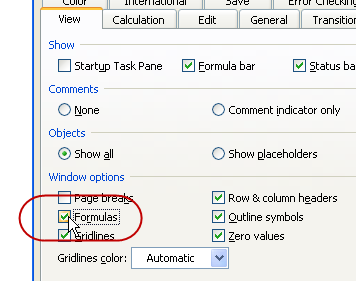
If you’re using Excel 2003, follow these steps to see the formulas on the worksheet:
- On the Tools menu, click Options
- On the View tab, add a check mark to Formulas.
See Formulas in Excel 2007
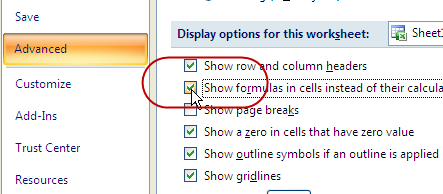
If you’re using Excel 2007, follow these steps to see the formulas on the worksheet, instead of the formula results:
- Click the Office button, then click Excel Options
- Click the Advanced category
- In the Display Options for This Worksheet section, add a check mark to
- Show formulas in cells instead of their calculated results.
Show or Hide Formulas with a Keyboard Shortcut
The keyboard shortcut to show or hide the formulas is
-
Ctrl + `
The symbol at the right is an accent grave, and that key is above the Tab key on the my laptop’s keyboard. It might be in a different location on yours
The accent grave looks similar to an apostrophe, but its top leans to the left, instead of being straight up and down.

___________________
@Terry,
As long as your formula cells do NOT have any Conditional Formatting to begin with, then you can use the first macro below to highlight your formula cells on the active sheet using Conditional Formatting (so that any interior colors assigned to those cells will be preserved) and you can use the second macro to remove that highlight… make sure you do that before you run the first macro again on this, or any other sheet, or before you close the workbook. Copy/Paste all of the code below into a standard Module (making sure the first Dim appears before ANY other code in the Module, even code already existing in it)…
Dim FormulaCells As RangeSub HighlightFormulaCells()
Dim C As Range
Set FormulaCells = Cells.SpecialCells(xlCellTypeFormulas)
For Each C In FormulaCells
C.FormatConditions.Add xlExpression, , “=COUNTA(” & C.Address & “)”
C.FormatConditions(1).Interior.ColorIndex = 6
Next
End Sub
Sub ClearHighlightedFormulaCells()
FormulaCells.FormatConditions.Delete
Set FormulaCells = Nothing
End Sub