
Here’s how I ran a small contest, and what I did to pick a winner from a list of names in Excel.
Facebook Page
Remember the old days, when only the kids belonged to Facebook, and they used it to plan parties, and post embarrassing photos? Well, now almost everybody has signed up, and the kids have probably moved somewhere else, and they’re hoping that we don’t discover where.
I have a personal account, and also created a page for Contextures. I hadn’t done much with that page (okay – nothing), and it had a couple of fans. (Thank you, to those first two fans.)
Over the weekend, I read that pages with 25+ fans could register for a customized URL. That sounded like a fun challenge, so I created my first ever book giveaway event (you need to log in to Facebook to see that page).
The rules were simple — become a fan by Sunday evening, for a chance to win a signed copy of one of my pivot table books (US and Canada mailing addresses only).
Selecting the winner
Since my books are about Excel, it seemed logical that Excel should pick the winning fan. As I explained in the giveaway announcement:
All fan names will be entered in an Excel sheet, and the Rand function will be used to select the winner’s name.
Here’s how I picked the winner:
- In cells A1:B1, enter the headings, Name and Number, and format those cells as Bold
- List all the fan names in column A, under the column heading “Name”.
- In cell B2, type a RAND formula: =RAND()
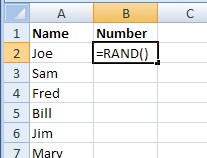
- Copy the formula down to the last row of data.
- To change the cells to values, select all the cells with formulas, and copy and paste as values.
- Select a single cell in column B, and click the Sort Smallest to Largest button on the Ribbon’s Data tab.
- The name at the top is the lucky winner of a pivot table book!
Excelapalooza!
Well, the giveaway was fun, so I’ll do it again in a couple of weeks.
Or maybe we could organize an Excelapalooza, and everybody with an Excel site or blog could collect names and contribute a prize. Imagine the awesomeness!
______________
Heinz, I opened the list of fans in Facebook, copied them, and pasted in Excel. I copied that list, and pasted as values in another workbook, to get rid of the pictures, etc.
Super cool, it worked. I was searching all day for an application or something. Now we will be able to pick the winner……..Thanks Heinz
Here is a quick idea on how to create weighted random data in Excel (including override options). http://www.myspreadsheetlab.com/video-00163-creating-a-weighted-random-data-set/
Cheers,
Kevin