
This week, while working on a client’s Excel project, I ran into some trouble with Excel tables, while adding new data. Instead of expanding to include the rows, the table just ignored them.
Fortunately, the problem is easy to fix, if you know how, and if you have the patience to do lots of clicking.
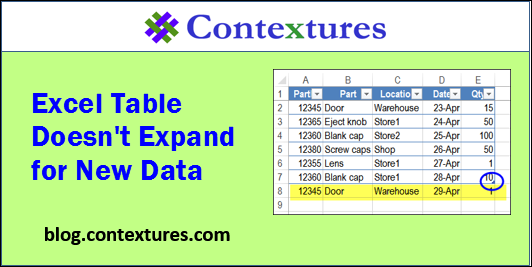
New Data Ignored
Tables are a great feature in newer versions of Excel. They make it easy to add, sort, and filter your data. Usually, tables behave quite nicely, unless, of course, you try to add a Custom View to the workbook, or do something with a group of sheets that contain tables.
The file contains a UserForm for data entry, similar to the one shown below, that you can download from my Contextures site. When you click the “Add this part” button, the new record is added at the end of the existing rows.
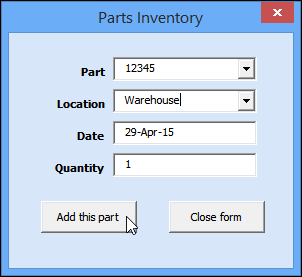
Excel Table Problem
Everything worked well on my computer, so I sent the file to my client, for testing. Unfortunately, things didn’t go well on his computer.
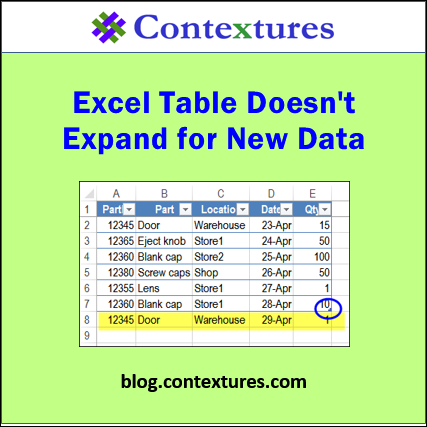
The data overflowed the table, instead of it expanding automatically. As a result, the new data didn’t sort with the other items, and wasn’t included in the drop down list, based on one of columns.
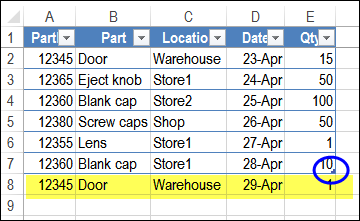
After hearing about the problem, I tried the code on a couple of other computers, and in different versions of Excel.
I couldn’t reproduce the problem, so there had to be a setting on my client’s computer that was causing the problem.
Fix the Problem
After exploring a few possibilities, I finally figured out that the problem was caused by an AutoCorrect setting. Who even remembers that Excel has AutoCorrect settings?
I added code to the UserForm, to change those settings, but you can make the same changes manually. However, the settings are buried 5 clicks deep, so pack a lunch for the journey!
- NOTE: There is lots of room on the Ribbon’s Table Tools Design tab – maybe these settings could be added there, in a future version of Excel. In the meantime, you could add the AutoCorrect Options command to one of the tabs, so it’s easier to access.
For example, put it on the Review tab, with the other Proofing tools.
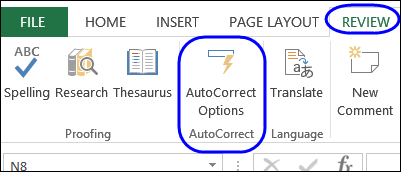
Change the AutoCorrect Settings
NOTE: Changing these settings will affect all workbooks that you open in Excel, on your computer.
To fix the tables, so they automatically expand to include new rows or columns, follow these steps:
- At the left end of the Ribbon, click the File tab
- Then click Options
- In the Excel Options window, at the left, click Proofing
- In the AutoCorrect options section, click AutoCorrect Options
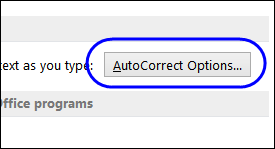
- Click the AutoFormat As You Type tab – you’ve finally reached the settings!
- Add check marks to “Include new rows and columns in table” and “Fill formulas in tables to create calculated columns”
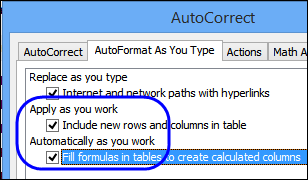
- Click OK, twice, to return to Excel
Video: Excel Table Doesn’t Expand Automatically
To see the steps for setting up an Excel table, and checking the AutoCorrect options so it expands automatically, please watch this short video.
Download the Sample File
To experiment with Excel tables, and to get the code to change the AutoCorrect settings programmatically, please go to the Excel Table page on my Contextures website.
_____________
Great Thanks for that Tully!
Thank you! been finding for this solution quite a while
I do have that issue too 🙂
The table formula does not expand whenever I enter new lines. However, if I add a new column the table expands.
Do you have the VBA code to solve this issue?
Any suggestions from the OP on how to do this in the latest downgrade, Office 365?
This setting seems to have been removed, and replaced with more useless junk I’ll never use.
Came here looking for a solution to a colleague’s issue where a table in a single worksheet would no longer expand. The solution turned out to be remarkably simple – my colleague had accidentally selected to worksheets in Excel so both the worksheet containing the table and another worksheet were highlighted below! Unselecting the second worksheet fixed the problem!