
When you create a drop down list with data validation, you can’t change the font or font size. If you have reduced the zoom setting for a worksheet, it can be difficult to read the items in the list. And even at 100%, it can tough to read the tiny print, at the end of a long workday. Here’s how you can make data validation list appear larger.
Zoom In to Read the List
To make the data validation text appear larger, you can use a bit of VBA code to increase the zoom setting when a data validation cell is selected. (Note: this can be a bit jumpy)
The following code will change the zoom setting to 120% when any cell with a data validation list is selected. If you select a cell without a data validation list, the zoom reduces to 100%.
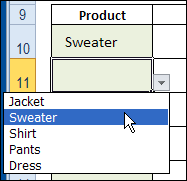
The Zoom Code
Add this code to the worksheet module for the sheet with data validation cells.
Private Sub Worksheet_SelectionChange(ByVal Target As Range)
  Dim lZoom As Long
  Dim lZoomDV As Long
  Dim lDVType As Long
  lZoom = 100
  lZoomDV = 120
  lDVType = 0
  Application.EnableEvents = False
  On Error Resume Next
  lDVType = Target.Validation.Type
    On Error GoTo errHandler
    If lDVType <> 3 Then
      With ActiveWindow
        If .Zoom <> lZoom Then
          .Zoom = lZoom
        End If
      End With
    Else
      With ActiveWindow
        If .Zoom <> lZoomDV Then
          .Zoom = lZoomDV
        End If
      End With
    End If
exitHandler:
  Application.EnableEvents = True
  Exit Sub
errHandler:
  GoTo exitHandler
End Sub
More Zoom Options
To see other sample code for changing the zoom setting, see the Data Validation Tips page on the Contextures website.
__________________
I saw somewhere someone suggested to reduce the font size of the entire sheet to 6 or 8, then zoom in. The smaller drop-down is now regular size