
While working on client projects, I enter all my timesheet data in Excel. Why do I use Excel? Here are my top reasons (excuses):
- Excel is usually open on my computer, so it’s the easiest program for me to use
- That’s the way I’ve always done it
- Other important, and perfect valid, reasons that are long forgotten.
Invoices in Microsoft Access
Even though I enter the project working time data in Excel, I create my invoices in Microsoft Access. The reasons are similar to the list above!
As a result, I have to move the data from Excel to Access, usually at the end of the workday.
Last week, JP asked about the code that I use, so here’s a look at how it works.
Filter Completed Items
On my Excel timesheet, there’s a Send to DB button.
That button runs a macro which filters the completed rows to a different worksheet, named CopyToDB.
On the CopyToDB sheet, the Advanced Filter extract range has:
- only the data columns that I need for the export
- columns n the order that I need them for the Access database.
For examples of similar code, go to the Excel Advanced Filter Macros page on my Contextures site.
Send Data to Access
Once the data’s on the CopyToDB sheet, I give it a quick glance, to make sure everything looks okay.
Next, I click the Send to Access button at the top of that sheet.
That button runs a macro that:
- opens an ADO connection to the database
- inserts the Excel data
- closes the connection
- clears the export range on CopyToDB sheet, to remove the data.
The macro code is further down the page.
How It Works
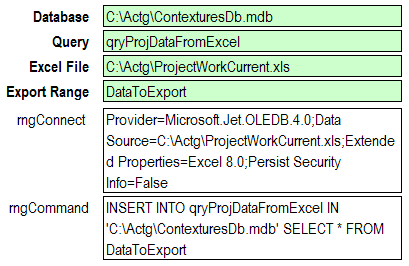
For the export code, the connection string and command text string are on the QueryStrings worksheet in the the Excel workbook.
I entered the info in the green cells, and the strings for the macro are calculated in the white cells.
This makes it easy to modify the connection strings, if needed.
For example, if the database moves to a different folder, I just type the new address in the Database cell.
Excel VBA Code – Send to Access
I’m not an ADO connection expert, so perhaps this Excel VBA code can be improved, but this macro does what I need:
'=======================
Sub SendDataToAccess()
Dim wsQS As Worksheet
Dim sConnect As String
Dim sCommand As String
Dim adoCn As ADODB.Connection
Set wsQS = Worksheets("QueryStrings")
Set adoCn = New ADODB.Connection

sConnect = wsQS.Range("rngConnect").Value
sCommand = wsQS.Range("rngCommand").Value

' Get ADO connection to the workbook
adoCn.Open sConnect

' Append data from Excel worksheet
adoCn.Execute sCommand

' Close the connection to the workbook
adoCn.Close

Set adoCn = Nothing
Worksheets("CopyToDB").Range("DataToExport") _
	.Offset(1, 0).ClearContents
Worksheets("Proj DB").Activate
Set wsQS = Nothing

End Sub
'========================
0 thoughts on “Send Excel Data to Access”