
Do you use many colours in Excel?
I keep most of my Excel workbooks relatively colour free, except for a few headings or charts, or to mark cells for data entry. Usually, I use Excel’s standard colours, but sometimes I need something a little different.
For example, if I’m building a workbook for a client, I might want to match their corporate colours.
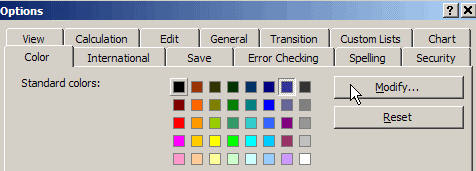
Modify a Colour in Excel 2003
The colour options are hard to find in Excel 2003. To use a new custom colour to your workbook, you’ll have to modify one of the existing colours.
- On the Tools menu, click Options.
- On the Color tab, click on one of the standard colours that you don’t plan to use in this workbook
- Click Modify, to open the Colors dialog box
Select a Colour in Excel 2007
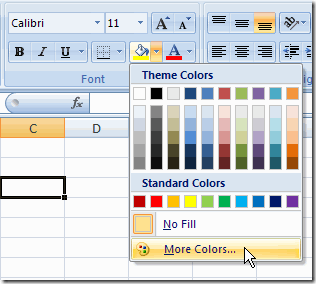
In Excel 2007, you can use a Ribbon command to open the Color dialog box.
- On the Ribbon’s Home tab, click the arrow at the right of the Fill Color or Font Color button
- Click More Colors…
The Color Dialog Box
In both versions of Excel, the Colors dialog box looks the same.
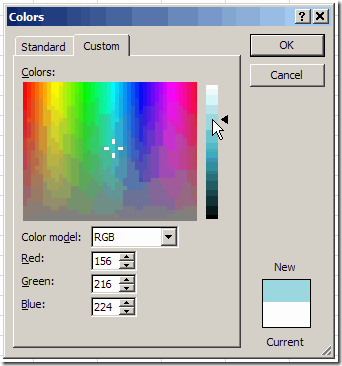
Click on a colour in the Standard tab, or click the Custom tab for more choices.
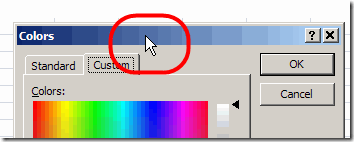
Make It Bigger
To make it easier to see the colours, double-click the Colors title bar, and the dialog box will expand to fill the screen.
That lets you really zoom in on the colour choices, at the pixel level, and find what you need.
Select a Custom Colour
If my client provided colour information, I can enter the Red, Green and Blue numbers on the Custom tab, for an exact match.
When I don’t need an exact match, I can move through the custom colour screen until I find something that looks appropriate for the workbook.
To move through the Custom Colors palette:
- Click on a colour with the mouse pointer
- Or, on the keyboard, use the arrow keys to move up, down, left or right
At the bottom left of the Colors window, the Red, Green and Blue numbers will change, as you move through the colours.
_____________________
In a similar vein, I’ve noticed that certain dialog boxes like Line Color, Fill Color, and Font Color have selection bars across the top of them.
You can’t resize them, but you CAN use the selection bar to drag the dialog box into your screen and keep it open – so multiple coloring activities can be achieved without closing the dialog.
Alex, those tear off palettes are very handy. Too bad they aren’t available in Office 2007.
If you need to match your client’s colors exactly and do not have the specific color codes, you can obtain them from their website. Simply go to your client’s website and find their logo, then use a browser plugin (I use ColorZilla for Chrome) to select the area where the color is located. Repeat until you have their complete color scheme. I use this trick all the time and my clients love it.