
Yesterday, in the 30XL30D challenge, we took things easy, with the T function.
REPT Function
For day 15 in the challenge, we’ll examine the REPT function, which repeats a text string, a specified number of times. It’s another Text function, and has a few interesting uses.
So, let’s take a look at the REPT information and examples, and if you have other tips or examples, please share them in the comments.
Function 15: REPT
The REPT function repeats a text string, a specified number of times. The REPT function repeats a text string, a specified number of times. The REPT function repeats a text string, a specified number of times.
Note: Creating hilarious effects like the above paragraph would be much easier with the REPT function. 😉
How Could You Use REPT?
The REPT function can be used to fill a cell with a character, or in innovative ways, such as:
- Creating an in-cell bar or dot chart
- Keeping a quick tally
- Finding the last text entry in a column
REPT Syntax
The REPT function has the following syntax:
- REPT(text,number_times)
- text is the item that you want to repeat.
- number_times is a positive number
REPT Traps
- The limit to the text string is 32,767 characters — anything higher, and the formula will result in an error.
- If number_times is a decimal, it will be truncated to an integer.
- If number_times is zero, the result is an empty string.
REPT Alternative
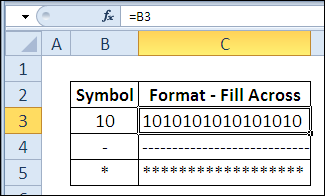
If you simply want to fill a cell with a character, you can use cell formatting instead:
- In a cell, type the character(s) that you want as the fill, e.g. a hyphen or period
- With the cell selected, press Ctrl + 1, to open the Format Cells window
- Click the Alignment tab, and from the Horizontal setting, select Fill
- Click OK to close the dialog box.
The character will fill the cell, and expands or shrinks as the column width is adjusted.
Example 1: In-Cell Bar Chart
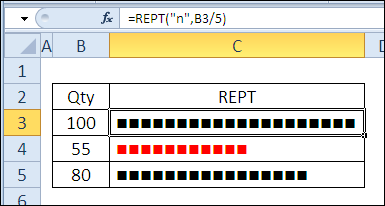
If you don’t have a newer version of Excel, with data bars, you can use the REPT function to create a simple in-cell bar chart. For example, to create a bar chart for a target of 100:
- In cell B3, type 100
- In cell C3, enter the following formula:
=REPT(“n”,B3/5)
- Format cell C3 with Wingdings font (I used font size 9)
- Adjust column C’s width to fit the resulting bar.
- Change the number in cell B3, and the chart will change.
I added conditional formatting in this example, to highlight quantities less than 60.
Example 2: In-Cell Dot Chart
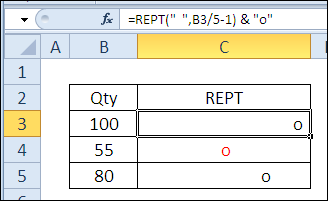
Instead of bar charts, you can use the REPT function to create a simple in-cell dot chart. For example, to create a dot chart for a target of 100:
- In cell B3, type 100
- In cell C3, enter the following formula:
=REPT(” “,B3/5-1) & “o”
- Adjust column C’s width to fit the resulting bar.
- Change the number in cell B3, and the dot location in the chart will change.
Example 3: Keep a Simple Tally
If you lost your cribbage board, or are counting the days until your next vacation, you can use a simple tally to keep track of the score, or the passing days.
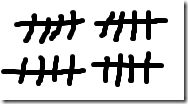
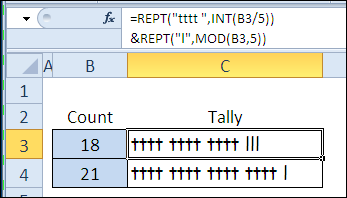
To create a tally with the REPT function:
- In cell B3, type your target amount, e.g. 25
- In cell C3, enter the following formula:
=REPT(“tttt “,INT(B3/5)) & REPT(“l”,MOD(B3,5))
- Format cell C3 with Comic Sans font, or another font with a straight “t”. (Finally — a use for Comic Sans!)
- Adjust column C’s width to fit the resulting bar. If the target number is high, you can increase the row height, and format for Wrap Text
- Change the number in cell B3, and the tally will change.
The formula result shows one group of t’s, for every 5 items in the count — INT(B3/5).
If there is a remainder, after dividing the count by 5, that amount is displayed at the end, as lower case L’s — MOD(B3,5).
Example 4: Find the Last Text Item in a Column
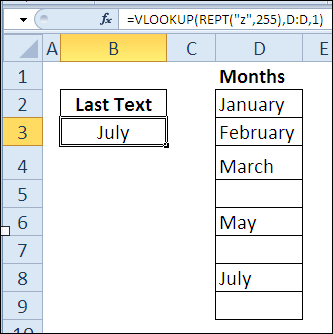
Combined with VLOOKUP, you can use the REPT function to find the last text item in a column. For example, with text items in column D, use this formula to find the last item:
=VLOOKUP(REPT(“z”,255),D:D,1)
The REPT function in the formula creates a text string at the end of the alphabet, and VLOOKUP won’t be able to find that string. So, with approximate match, it returns the last text item in the list.
Download the REPT Function File
To see the formulas used in today’s examples, you can download the REPT function sample workbook. The file is zipped, and is in Excel 2007 file format.
Watch the REPT Video
To see a demonstration of the examples in the REPT function sample workbook, you can watch this short Excel video tutorial.
_____________
Thanks for all the comments and examples for the REPT function!